
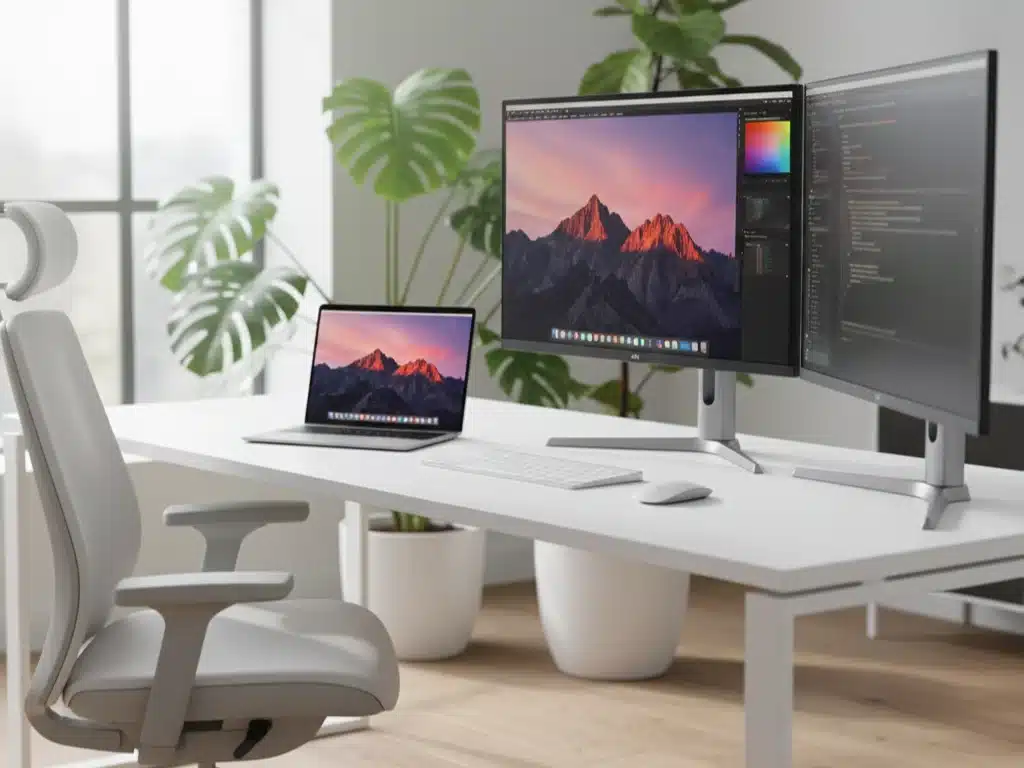
Working from home has transformed from a temporary solution into a permanent lifestyle for millions of professionals worldwide. Your monitor is the window to your digital workspace—choosing the right one can dramatically improve your productivity, reduce eye strain, and make those long work hours more comfortable.
Whether you’re a creative professional demanding color accuracy, a multitasker juggling multiple applications, or someone who values eye comfort during marathon work sessions, finding the perfect monitor requires understanding your specific needs.
In this comprehensive guide, we’ve tested and analyzed 10 exceptional monitors that excel in home office environments. From budget-friendly options to premium displays with professional-grade features, this guide will help you make an informed decision.
🎯 Quick Navigation
Jump to the section that interests you most:
📊 Quick Comparison Table
See all 10 monitors side-by-side with key specifications, features, and our recommendations for each use case. Perfect for quickly identifying which monitors match your requirements.
🏆 Top-10-Monitors-for-Work-From-Home
Detailed, in-depth reviews of each monitor including:
- Complete technical specifications
- Real-world performance analysis
- Detailed pros and cons
- Best use cases and who should buy
- Who should skip each model
🎓 How to Choose the Right Monitor for Work From Home
Comprehensive buying guide covering:
- Resolution Considerations – 4K vs QHD vs Full HD explained
- Screen Size Selection – Finding the perfect size for your desk and needs
- Panel Technology Explained – IPS vs VA vs OLED: which is right for you?
- Refresh Rate Impact – Understanding 60Hz, 75Hz, 100Hz, and beyond
- USB-C Connectivity Benefits – Single-cable solutions and Power Delivery
- Ergonomics Importance – Preventing neck strain and improving comfort
- Color Accuracy for Different Professions – What creatives vs office workers need
- Eye Comfort Features – Flicker-free, blue light filters, and anti-glare
- Connectivity Requirements – Essential ports and future-proofing
- Budget Guidelines – What to expect at different price points
🔧 Essential Monitor Features Explained
Deep dive into monitor specifications and what they mean:
- Understanding Color Gamuts – sRGB, DCI-P3, Adobe RGB, and Rec.709
- Delta E Color Accuracy – What the numbers really mean
- Contrast Ratio Impact – How it affects your viewing experience
- HDR (High Dynamic Range) – HDR10, HDR400, HDR600, and True Black
- Response Time Matters – 1ms vs 5ms vs 8ms explained
- Brightness Requirements – How many nits do you need?
- Viewing Angles Explained – Why IPS wins for collaboration
❓ Frequently Asked Questions
Expert answers to the most common monitor questions:
- What resolution is best for a 27-inch monitor?
- Is 4K worth it for productivity work?
- Do I really need USB-C on my monitor?
- What’s the difference between IPS and VA panels?
- Is a 75Hz or 100Hz refresh rate noticeable?
- How important is color accuracy for my work?
- Should I get one large monitor or two smaller ones?
- What about curved monitors for work?
- How much should I spend on a work-from-home monitor?
- Can I use a gaming monitor for work?
📊 Quick Comparison Table
| Monitor Model | Size | Resolution | Refresh Rate | Panel Type | USB-C PD | Color Gamut | Best For |
|---|---|---|---|---|---|---|---|
| Dell S3225QS | 31.5″ | 4K UHD | 120Hz | VA | ❌ | 95% DCI-P3 | Large screen multitasking |
| Samsung Odyssey OLED G5 | 27″ | QHD | 180Hz | QD-OLED | ❌ | 99% DCI-P3 | Creative work & gaming |
| BenQ MA320U | 32″ | 4K UHD | 60Hz | IPS | ✅ 90W | 95% DCI-P3 | Mac users |
| ASUS ProArt PA278CV | 27″ | WQHD | 75Hz | IPS | ✅ Yes | 100% sRGB/Rec.709 | Professional content creation |
| BenQ PD2706QN | 27″ | QHD | 100Hz | IPS | ✅ 90W | 95% DCI-P3 | Professional designers |
| Dell S2722DC | 27″ | QHD | 75Hz | IPS | ✅ 65W | sRGB | Budget USB-C option |
| LG 32U631A-B | 32″ | QHD | 100Hz | IPS | ✅ 15W | sRGB | General productivity |
| XIAOMI A27Qi | 27″ | QHD | 100Hz | IPS | ❌ | 95% DCI-P3 | Color accuracy on budget |
| ViewSonic VX3276-2K-MHD | 32″ | QHD | 75Hz | IPS | ❌ | sRGB | Value for large screen |
| ViewSonic VS2725-2K | 27″ | QHD | 100Hz | IPS | ❌ | sRGB | Entry-level office |
🏆 Top 10 Monitors for Work From Home: Detailed Reviews
1. Dell 32 Plus 4K Monitor (S3225QS) – Best for Maximum Screen Real Estate


Screen Size: 31.5″ | Resolution: 4K (3840×2160) | Panel: VA | Refresh Rate: 120Hz
![Monitor Icon] For professionals who need serious screen space, the Dell S3225QS delivers an expansive 31.5-inch canvas with stunning 4K resolution. This monitor transforms how you work by providing ample room for multiple applications side-by-side.
✨ Key Highlights
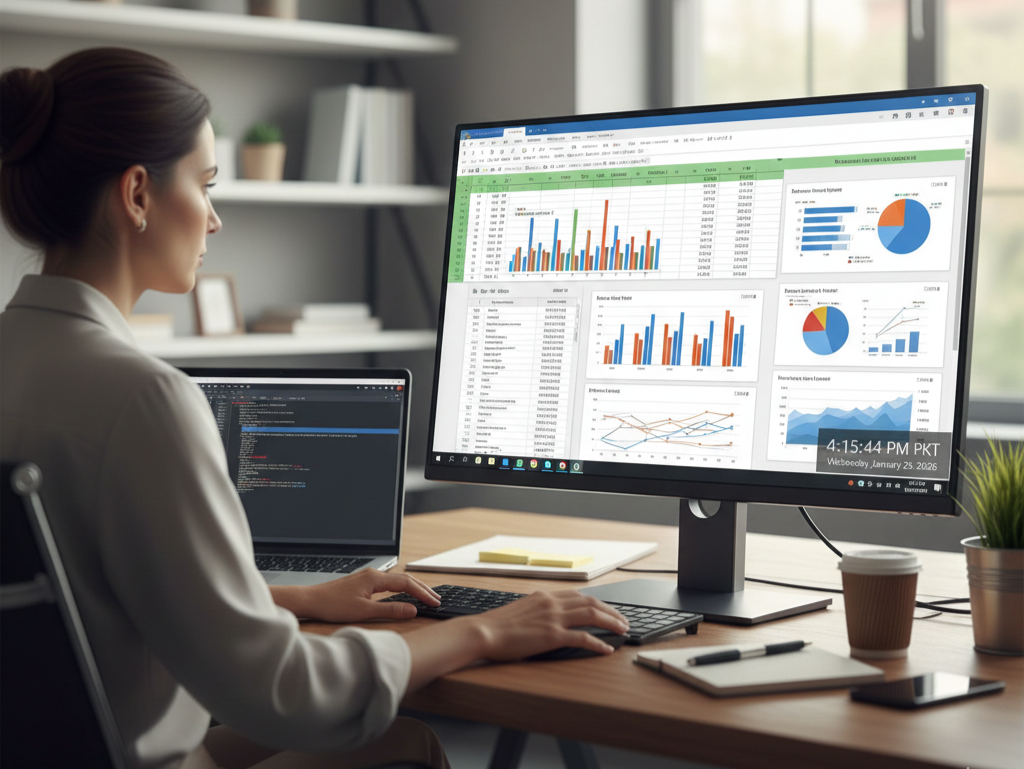
Exceptional Screen Space: With 4K resolution across 31.5 inches, you get crystal-clear text and images while having enough space to view spreadsheets, documents, and web pages simultaneously without constant window switching.
Superior Contrast Ratio: The VA panel technology delivers a remarkable 1500:1 contrast ratio—significantly better than typical IPS panels. This means deeper blacks, more vibrant colors, and improved readability, especially when working with dark-themed applications or spreadsheets.
Impressive Color Coverage: Covers 99% sRGB and 95% DCI-P3 color spaces, making it suitable for both general productivity and creative work. Photos and videos look accurate and vibrant.
High Refresh Rate: The 120Hz refresh rate isn’t just for gaming—it makes everyday tasks like scrolling through documents and moving windows feel incredibly smooth and responsive.
AMD FreeSync Premium: Eliminates screen tearing and stuttering, providing a seamless visual experience whether you’re working or unwinding with content.
ComfortView Plus: Dell’s built-in low blue light technology reduces eye strain during extended work sessions without the yellow tint that affects some blue light filters.
📝 Technical Specifications
- Display Size: 31.5 inches
- Native Resolution: 3840 × 2160 (4K UHD)
- Aspect Ratio: 16:9
- Panel Technology: VA (Vertical Alignment)
- Brightness: 350 cd/m²
- Contrast Ratio: 1500:1 (static)
- Response Time: 5ms (typical)
- Viewing Angles: 178°/178° (H/V)
- Refresh Rate: Up to 120Hz
- HDR Support: HDR10
- Connectivity: 2× HDMI 2.1, 1× DisplayPort 1.4
- Built-in Speakers: Yes (2× 3W)
- VESA Mount: 100×100mm
- Adjustability: Tilt (-5° to 21°)
✅ Pros
- Massive screen space perfect for multitasking
- Excellent contrast ratio for VA panel
- Smooth 120Hz refresh rate
- Wide color gamut coverage
- Built-in speakers included
- ComfortView Plus reduces eye strain
- Affordable for a 32″ 4K display
❌ Cons
- No USB-C connectivity
- Limited ergonomic adjustments (tilt only)
- VA panel has narrower viewing angles than IPS
- 5ms response time may not satisfy competitive gamers
💼 Best For
Professionals who prioritize screen real estate, data analysts working with large spreadsheets, content creators needing 4K resolution, multitaskers who run many applications simultaneously, and anyone who values contrast and color quality for extended work sessions.

🎯 Who Should Skip This
Those requiring extensive ergonomic adjustments, professionals needing USB-C single-cable connectivity, users wanting ultra-wide viewing angles, and competitive esports gamers requiring sub-1ms response times.

- Improved ComfortView Plus: Reduces harmful blue light emissions to ≤35%, for all-day comfort without sacrificing color a…
2. Samsung 27″ Odyssey OLED G5 (G50SF) – Best for Creative Professionals & Gaming


Screen Size: 27″ | Resolution: QHD (2560×1440) | Panel: QD-OLED | Refresh Rate: 180Hz
![Monitor Icon] The Samsung Odyssey OLED G5 represents the cutting edge of display technology with its Quantum Dot OLED panel. This monitor delivers perfect blacks, infinite contrast, and colors that simply leap off the screen—making it ideal for creative work and entertainment.
✨ Key Highlights
Revolutionary QD-OLED Technology: Unlike traditional LCD panels, OLED pixels emit their own light, producing perfect blacks and infinite contrast. Combined with Quantum Dot technology, you get incredibly vibrant and accurate colors that IPS and VA panels cannot match.
Exceptional Color Accuracy: Covering 99% of DCI-P3 color space, this monitor displays colors with precision and vibrancy. Perfect for photo editing, video production, and graphic design work where color accuracy is paramount.
Lightning-Fast Response Time: With an astounding 0.03ms (GtG) response time, motion blur is completely eliminated. Whether you’re editing fast-paced video footage or gaming after work, the visual clarity is unmatched.
Blazing 180Hz Refresh Rate: The ultra-smooth 180Hz refresh rate makes everything from scrolling documents to gaming feel incredibly responsive. Your cursor movements, window animations, and content playback all benefit from this smoothness.
True HDR Performance: OLED’s ability to produce perfect blacks means HDR content looks phenomenal. The contrast and color depth bring photos and videos to life in ways traditional monitors cannot achieve.
Flicker-Free by Design: OLED technology doesn’t use PWM dimming like LCD panels, resulting in a naturally flicker-free experience that reduces eye strain during long work sessions.
Adaptive Sync Support: Both NVIDIA G-Sync and AMD FreeSync compatibility ensure smooth, tear-free performance whether you’re working with graphics-intensive applications or gaming.
📝 Technical Specifications
- Display Size: 27 inches
- Native Resolution: 2560 × 1440 (QHD)
- Aspect Ratio: 16:9
- Panel Technology: QD-OLED (Quantum Dot OLED)
- Brightness: 250 cd/m² (typical), 400 cd/m² (HDR peak)
- Contrast Ratio: Infinite (OLED)
- Response Time: 0.03ms (GtG)
- Viewing Angles: 178°/178° (H/V)
- Refresh Rate: 180Hz
- HDR Support: HDR True Black 400
- Connectivity: 2× HDMI 2.1, 1× DisplayPort 1.4, 2× USB-A
- VESA Mount: 75×75mm
- Adjustability: Tilt, Height, Swivel
✅ Pros
- Perfect blacks and infinite contrast ratio
- Exceptional color accuracy (99% DCI-P3)
- Ultra-fast 0.03ms response time
- Smooth 180Hz refresh rate
- Naturally flicker-free (no PWM)
- True HDR performance
- Excellent ergonomic adjustments
- Both G-Sync and FreeSync compatible
❌ Cons
- No USB-C connectivity
- Potential OLED burn-in with static content (taskbars, logos)
- Higher power consumption than LCD
- More expensive than comparable LCD monitors
- Lower peak brightness than high-end LCD panels
💼 Best For
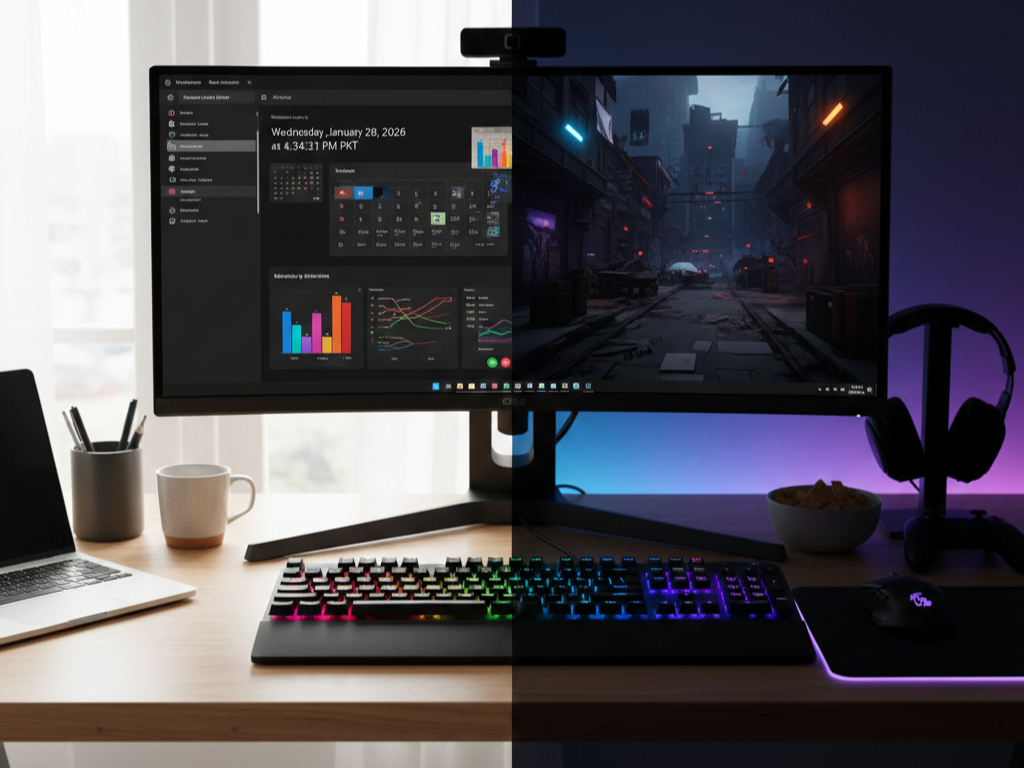
Creative professionals requiring perfect color accuracy, graphic designers and video editors, photographers who need true blacks, content creators working with HDR media, hybrid users who work and game, and anyone who values the absolute best image quality available.
🎯 Who Should Skip This
Budget-conscious buyers, users who display static content 24/7 (risk of burn-in), professionals needing USB-C docking functionality, and those requiring extremely bright displays for sunlit rooms.

- Samsung’s 27” Odyssey OLED G5 QHD Gaming Monitor delivers hyper-real visuals and lightning-fast action.
3. BenQ MA320U 32″ – Best Monitor for Mac Users


Screen Size: 32″ | Resolution: 4K (3840×2160) | Panel: IPS | Refresh Rate: 60Hz
![Monitor Icon] Designed specifically for MacBook Pro and Air users, the BenQ MA320U offers seamless integration with Apple’s ecosystem. This monitor feels like a natural extension of your Mac, complete with native controls and color matching.
✨ Key Highlights
Mac Color Match Technology: This innovative feature automatically synchronizes the monitor’s color profile with your MacBook’s display, ensuring consistent colors across both screens. This is invaluable for designers and photographers who need accurate color representation.
Powerful 90W USB-C Power Delivery: Connect your MacBook Pro with a single USB-C cable that handles video, data, and charging simultaneously. The 90W power delivery charges even the most demanding MacBook Pro models while you work.
Native macOS Integration: Control brightness and volume directly from your Mac’s keyboard or Touch Bar—no need to use monitor buttons. The experience feels exactly like using Apple’s own displays.
Built-in USB Hub: Three additional USB-A 3.2 ports turn your monitor into a connectivity hub, reducing cable clutter and making it easy to connect peripherals without reaching for your laptop.
Wide Color Gamut: Covers 95% DCI-P3 color space—the same standard Apple uses for their displays. This ensures your creative work looks consistent whether viewing on the monitor or your MacBook screen.
Factory Calibrated: Ships with Delta E < 3 color accuracy right out of the box. No need for expensive calibration equipment—it’s ready for professional photo and video work immediately.
KVM Functionality: Switch between two computers using a single set of peripherals. Perfect for professionals who work on multiple machines.
Comprehensive Ergonomics: Height, tilt, and swivel adjustments let you find the perfect viewing position for all-day comfort.
📝 Technical Specifications
- Display Size: 32 inches
- Native Resolution: 3840 × 2160 (4K UHD)
- Aspect Ratio: 16:9
- Panel Technology: IPS (In-Plane Switching)
- Brightness: 350 cd/m²
- Contrast Ratio: 1000:1
- Response Time: 5ms (GtG)
- Viewing Angles: 178°/178° (H/V)
- Refresh Rate: 60Hz
- Color Gamut: 95% DCI-P3, 100% sRGB/Rec.709
- Connectivity: 2× USB-C (90W PD), 1× HDMI 2.0, 1× DisplayPort 1.4
- USB Hub: 3× USB-A 3.2
- Built-in Speakers: Yes (2× 2W)
- VESA Mount: 100×100mm
- Adjustability: Height (150mm), Tilt (-5° to 20°), Swivel (±45°)
✅ Pros
- Seamless Mac integration with color matching
- Powerful 90W USB-C Power Delivery
- Native macOS brightness and volume controls
- Factory calibrated for color accuracy
- Excellent ergonomic adjustability
- Built-in USB hub reduces cable clutter
- Wide DCI-P3 color gamut
- KVM functionality for multi-computer setups
❌ Cons
- Premium pricing
- 60Hz refresh rate (not ideal for gaming)
- Mac-specific features less useful for Windows users
- Glossy finish may cause reflections in bright rooms
💼 Best For
MacBook Pro and Air users, photographers and video editors in the Apple ecosystem, graphic designers requiring color accuracy, creative professionals who value seamless integration, and professionals managing multiple computers with KVM switching.
🎯 Who Should Skip This
Windows users (Mac-specific features won’t be utilized), gamers requiring high refresh rates, budget-conscious buyers, and those who prefer matte displays to avoid reflections.

- [Show Mac Colors] Calibrated for MacBook with BenQ’s exclusive color tuning, offering a vibrant P3 wide color gamut for …
4. ASUS ProArt Display 27″ Monitor (PA278CV) – Best for Professional Content Creation


Screen Size: 27″ | Resolution: WQHD (2560×1440) | Panel: IPS | Refresh Rate: 75Hz
![Monitor Icon] The ASUS ProArt PA278CV is purpose-built for content creators, offering professional-grade color accuracy at a more accessible price point than many competitor displays. With Calman verification and factory calibration, this monitor is ready for serious creative work straight out of the box.
✨ Key Highlights
Exceptional Color Accuracy: With Delta E < 2 color accuracy, the PA278CV delivers colors that are virtually indistinguishable from the source material. This level of precision is critical for photographers, video editors, and designers whose work demands color fidelity.
Calman Verified: Each monitor undergoes rigorous testing and calibration using Portrait Displays’ Calman color calibration software—the industry standard used by professional colorists and studios. This verification ensures consistent, accurate color reproduction.
Dual Color Space Coverage: Covers 100% sRGB and 100% Rec.709 color spaces, making it equally suitable for web design, print work, and video production. The comprehensive coverage ensures your work looks accurate across different media.
USB-C Connectivity: The USB-C port handles video, data, and power delivery through a single cable, simplifying your workspace setup. Perfect for laptop users who want a clean, cable-free desk.
DisplayPort Daisy-Chaining: Connect multiple monitors through a single DisplayPort connection, dramatically reducing cable clutter when expanding to a multi-monitor workflow. Essential for professionals who need extended workspace.
Built-In USB Hub: Includes multiple USB ports that turn your monitor into a connectivity hub, allowing you to connect peripherals directly without reaching for your computer.
Comprehensive Ergonomics: Full height adjustment (150mm), tilt (-5° to 23°), swivel (±90°), and pivot (90°) capabilities let you position the display perfectly for all-day comfort. This is crucial for professionals spending long hours in front of the screen.
Eye Care Technology: ASUS Eye Care features include flicker-free technology, blue light filter, and anti-glare coating to reduce eye strain during extended work sessions.
ProArt Preset Modes: Six preset display modes optimized for different tasks—sRGB, Rec.709, User Mode, Reading Mode, Darkroom Mode, and DICOM mode for medical imaging work.
ASUS ProArt Palette Software: The companion software provides easy access to color adjustment tools and settings without navigating the on-screen display menu.
📝 Technical Specifications
- Display Size: 27 inches
- Native Resolution: 2560 × 1440 (WQHD)
- Aspect Ratio: 16:9
- Panel Technology: IPS (In-Plane Switching)
- Brightness: 350 cd/m²
- Contrast Ratio: 1000:1
- Response Time: 5ms (GtG)
- Viewing Angles: 178°/178° (H/V)
- Refresh Rate: 75Hz
- Color Accuracy: ΔE < 2 (Calman Verified)
- Color Gamut: 100% sRGB, 100% Rec.709
- Connectivity: 1× USB-C (DisplayPort Alt Mode), 1× HDMI 1.4, 1× DisplayPort 1.2 (in), 1× DisplayPort 1.2 (out for daisy-chaining)
- USB Hub: 4× USB 3.1 Gen 1 (Type-A)
- Built-in Speakers: Yes (2× 2W)
- VESA Mount: 100×100mm
- Adjustability: Height (150mm), Tilt (-5° to 23°), Swivel (±90°), Pivot (90°)
✅ Pros
- Professional color accuracy (ΔE < 2)
- Calman verified factory calibration
- 100% sRGB and Rec.709 coverage
- USB-C connectivity with DisplayPort Alt Mode
- DisplayPort daisy-chain support
- Comprehensive ergonomic adjustments
- Built-in USB hub with 4 ports
- ProArt preset modes for different workflows
- Eye Care technology suite
- Pivot functionality for portrait orientation
- ASUS ProArt Palette software included
- Three-year warranty
❌ Cons
- USB-C lacks Power Delivery for laptop charging
- 75Hz refresh rate (not ideal for gaming)
- Narrower color gamut than DCI-P3 monitors
- 5ms response time may not satisfy gamers
- Built-in speakers are basic quality
- Higher price point than consumer displays
💼 Best For
Professional photographers requiring accurate color reproduction, video editors working in Rec.709 color space, graphic designers creating web and print content, content creators needing verified color accuracy, professionals using multi-monitor daisy-chain setups, users requiring portrait mode (pivot function), and anyone needing factory-calibrated displays for color-critical work.
🎯 Who Should Skip This
Users requiring USB-C Power Delivery for laptop charging, creative professionals working primarily in DCI-P3 color space, competitive gamers prioritizing high refresh rates, budget-conscious buyers who don’t need professional color accuracy, and users who don’t work with color-critical content.

- 27-inch WQHD (2560 x 1440) LED backlight display with IPS 178° wide viewing angle panel International color standard 100…
5. BenQ PD2706QN 27″ – Best for Professional Design Work
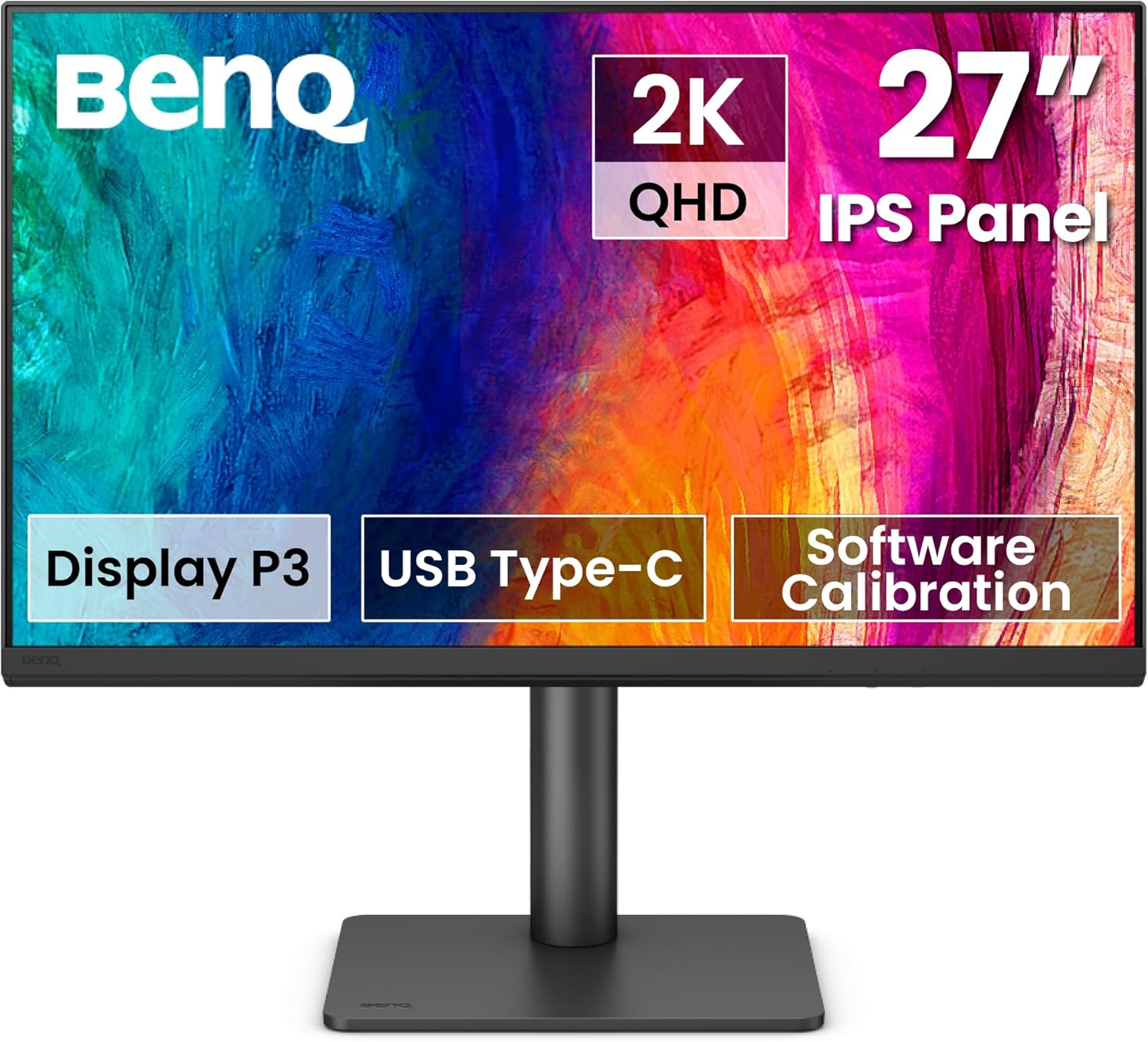


Screen Size: 27″ | Resolution: QHD (2560×1440) | Panel: IPS | Refresh Rate: 100Hz
![Monitor Icon] The BenQ PD2706QN is a professional-grade monitor designed specifically for designers, photographers, and creative professionals who demand exceptional color accuracy and workflow-enhancing features.
✨ Key Highlights
Factory Calibration Certificate: Each monitor comes individually calibrated from the factory with a Delta E ≤ 3 rating, ensuring accurate colors right out of the box. The calibration report is included, giving you confidence in color-critical work.
Professional Color Coverage: Covers 95% DCI-P3, 100% sRGB, and 100% Rec.709 color spaces. This comprehensive coverage ensures your work looks accurate across different media—from web to print to video.
Uniformity Technology: BenQ’s uniformity technology compensates for brightness and color variations across the screen, ensuring consistent appearance from edge to edge—critical for professional color work.
90W USB-C Power Delivery: Single-cable connectivity handles video, data, and charging for MacBooks and compatible laptops. The 90W power delivery supports even demanding professional laptops.
Daisy Chain Support (MST): Connect multiple monitors through a single cable using DisplayPort Multi-Stream Transport. Perfect for expanding your workspace without cluttering your desk with cables.
Anti-Glare Nano Matte Coating: The specialized nano matte coating effectively reduces reflections and glare without introducing graininess, maintaining image clarity even in bright office environments.
100Hz Refresh Rate: Higher than standard 60Hz, the 100Hz refresh rate provides smooth scrolling and responsive cursor movements, improving the overall workflow experience.
Mac-Ready Design: While not Mac-exclusive like the MA320U, this monitor is optimized for Mac users with compatible color profiles and seamless connectivity.
Hotkey Puck G3: The included controller puck provides quick access to display modes, brightness, and other settings without navigating on-screen menus.
📝 Technical Specifications
- Display Size: 27 inches
- Native Resolution: 2560 × 1440 (QHD)
- Aspect Ratio: 16:9
- Panel Technology: IPS (In-Plane Switching)
- Brightness: 350 cd/m²
- Contrast Ratio: 1000:1
- Response Time: 5ms (GtG)
- Viewing Angles: 178°/178° (H/V)
- Refresh Rate: 100Hz
- Color Gamut: 95% DCI-P3, 100% sRGB, 100% Rec.709
- Connectivity: 1× USB-C (90W PD + DP Alt Mode), 1× HDMI 2.0, 1× DisplayPort 1.4 (out), 1× DisplayPort 1.4 (in)
- USB Hub: 4× USB 3.2 Gen 1
- Built-in Speakers: Yes (2× 2W)
- VESA Mount: 100×100mm
- Adjustability: Height (150mm), Tilt (-5° to 20°), Swivel (±45°), Pivot (90°)
✅ Pros
- Factory calibrated with certificate
- Exceptional color accuracy across multiple color spaces
- Uniformity technology ensures consistent colors
- 90W USB-C Power Delivery
- Daisy chain support for multi-monitor setups
- Nano matte coating reduces glare
- 100Hz smooth refresh rate
- Comprehensive ergonomic adjustments
- Hotkey Puck G3 for easy control
❌ Cons
- Higher price point for professional features
- QHD resolution (not 4K)
- May be overkill for casual users
- Built-in speakers are basic quality
💼 Best For
Professional graphic designers, photographers requiring color accuracy, video editors working with multiple color spaces, UI/UX designers, digital artists, creative professionals with color-critical workflows, and professionals using multi-monitor setups with daisy chaining.

🎯 Who Should Skip This
Casual users who don’t need professional color accuracy, gamers prioritizing high refresh rates over color precision, budget-conscious buyers, and those requiring 4K resolution.

- ACCURATE & CONSISTENT COLORS: 95% P3, 100% sRGB/Rec.709 with an average Delta E ≤ 2 for factory-calibrated color accurac…
6. Dell S2722DC 27″ – Best Budget USB-C Monitor


Screen Size: 27″ | Resolution: QHD (2560×1440) | Panel: IPS | Refresh Rate: 75Hz
![Monitor Icon] The Dell S2722DC offers an excellent balance of features and value, making it one of the best options for professionals who want USB-C connectivity without breaking the bank.
✨ Key Highlights
USB-C Connectivity with Power Delivery: The built-in USB-C port delivers 65W of power—enough to charge most laptops while transmitting video and data through a single cable. This dramatically reduces desk clutter and simplifies your setup.
Comprehensive Ergonomics: Unlike many budget monitors, the S2722DC offers height adjustment (150mm), tilt, swivel (±45°), and pivot (90°) rotation. This flexibility helps you find the perfect viewing position for all-day comfort.
QHD Resolution Sweet Spot: At 27 inches, the 2560×1440 resolution provides sharp text and images with 109 PPI—the ideal balance between clarity and performance without requiring scaling like 4K displays.
Built-In Speakers: The integrated speakers eliminate the need for external audio solutions for video calls and casual listening. While not audiophile-grade, they’re convenient for everyday use.
AMD FreeSync Support: Screen tearing and stuttering are eliminated during video playback and casual gaming, providing a smooth visual experience.
ComfortView Technology: Dell’s low blue light solution reduces eye strain during extended work sessions without the color-shifting effects of some blue light filters.
Platinum Silver Design: The modern, professional aesthetic fits well in any home office or corporate environment.
📝 Technical Specifications
- Display Size: 27 inches
- Native Resolution: 2560 × 1440 (WQHD)
- Aspect Ratio: 16:9
- Panel Technology: IPS (In-Plane Switching)
- Brightness: 350 cd/m²
- Contrast Ratio: 1000:1
- Response Time: 4ms (typical)
- Viewing Angles: 178°/178° (H/V)
- Refresh Rate: 75Hz
- Color Gamut: 99% sRGB
- Connectivity: 1× USB-C (65W PD), 2× HDMI 1.4, 1× DisplayPort 1.2 (out)
- USB Hub: 2× USB-A 3.0 (downstream)
- Built-in Speakers: Yes (2× 5W)
- VESA Mount: 100×100mm
- Adjustability: Height (150mm), Tilt (-5° to 21°), Swivel (±45°), Pivot (90°)
✅ Pros
- Excellent value for USB-C connectivity
- 65W Power Delivery charges most laptops
- Comprehensive ergonomic adjustments
- Built-in speakers included
- 75Hz refresh rate for smooth visuals
- AMD FreeSync support
- ComfortView reduces eye strain
- Clean, professional design
❌ Cons
- 65W PD may not charge high-performance laptops at full speed
- sRGB color gamut (narrower than DCI-P3)
- Built-in speakers adequate but not exceptional
- 4ms response time higher than gaming-focused monitors
💼 Best For
Budget-conscious professionals needing USB-C, remote workers simplifying their desk setup, laptop users requiring charging through USB-C, general office productivity users, students and educators, and anyone prioritizing ergonomics at an affordable price.
🎯 Who Should Skip This
Creative professionals requiring wide color gamuts, competitive gamers needing faster response times, users with laptops requiring more than 65W charging, and those prioritizing premium build quality and materials.

- Versatile connectivity: Easily charge and connect your laptop with USB-C connectivity and 65W of power delivery. This si…
- Perfect ports: Charging and connecting your storage devices, mobile phones and other peripherals just got easier with a …
7. LG 32U631A-B 32″ – Best for General Productivity
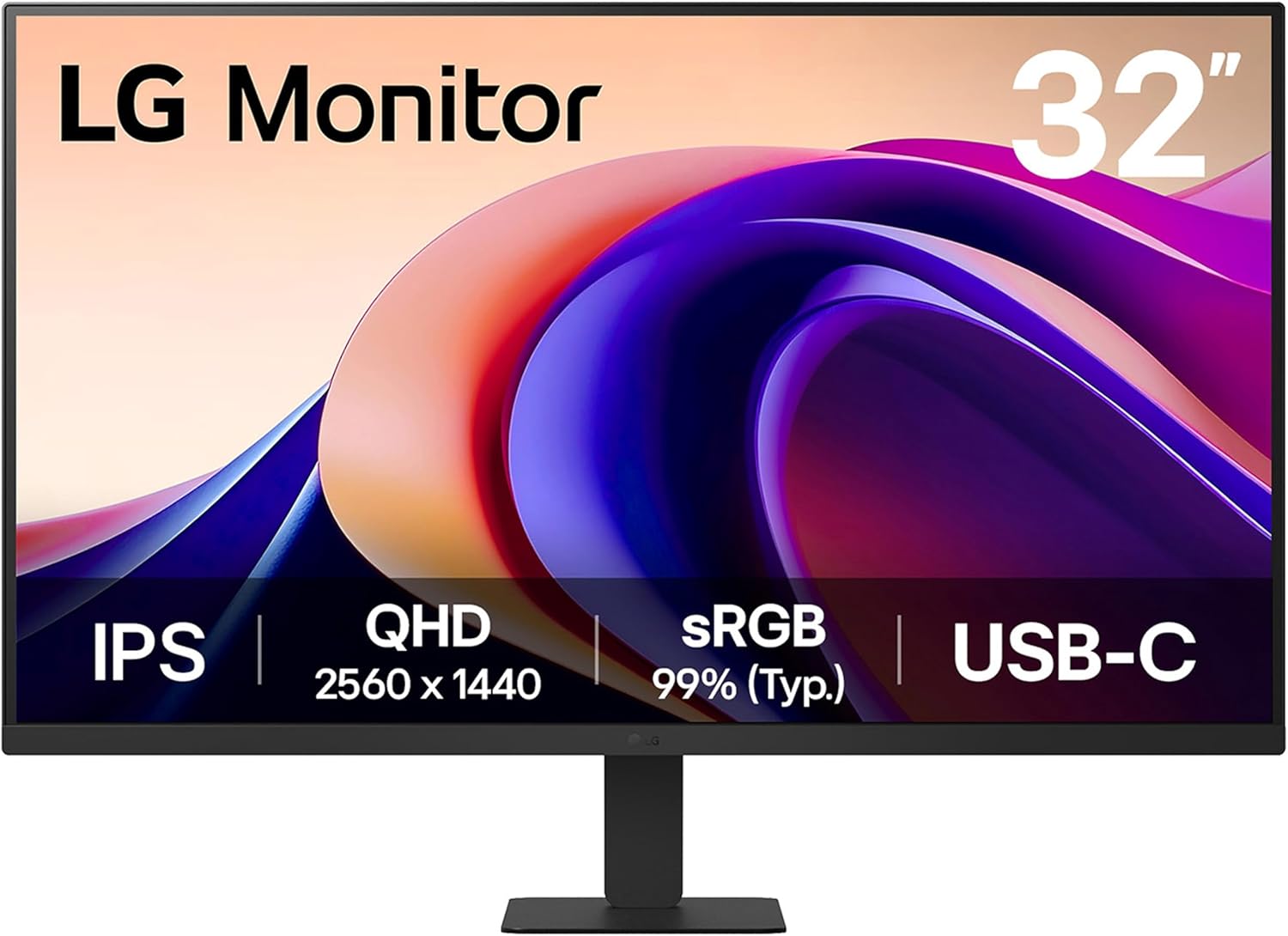
Screen Size: 32″ | Resolution: QHD (2560×1440) | Panel: IPS | Refresh Rate: 100Hz
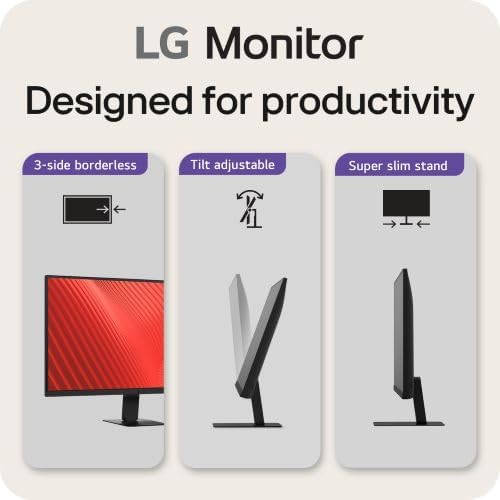
![Monitor Icon] The LG 32U631A-B strikes an excellent balance between screen size and features, offering a spacious 32-inch display with productivity-focused features at a competitive price point.
✨ Key Highlights
Large 32-Inch Screen: The generous screen size provides ample space for multiple windows and applications side-by-side, improving multitasking efficiency without requiring the processing power of 4K resolution.
100Hz Refresh Rate: The smooth 100Hz refresh rate makes scrolling through documents, spreadsheets, and web pages feel responsive and fluid, reducing eye strain during extended work sessions.
HDR10 Support: While not professional-grade HDR, HDR10 compatibility enhances contrast and color depth when viewing HDR content, making photos and videos more engaging.
Reader Mode: This specialized display mode reduces blue light and adjusts color temperature to mimic reading from paper, making it easier on your eyes when working with text-heavy documents.
Flicker Safe Technology: LG’s Flicker Safe technology eliminates screen flicker at all brightness levels, reducing eye fatigue during marathon work sessions.
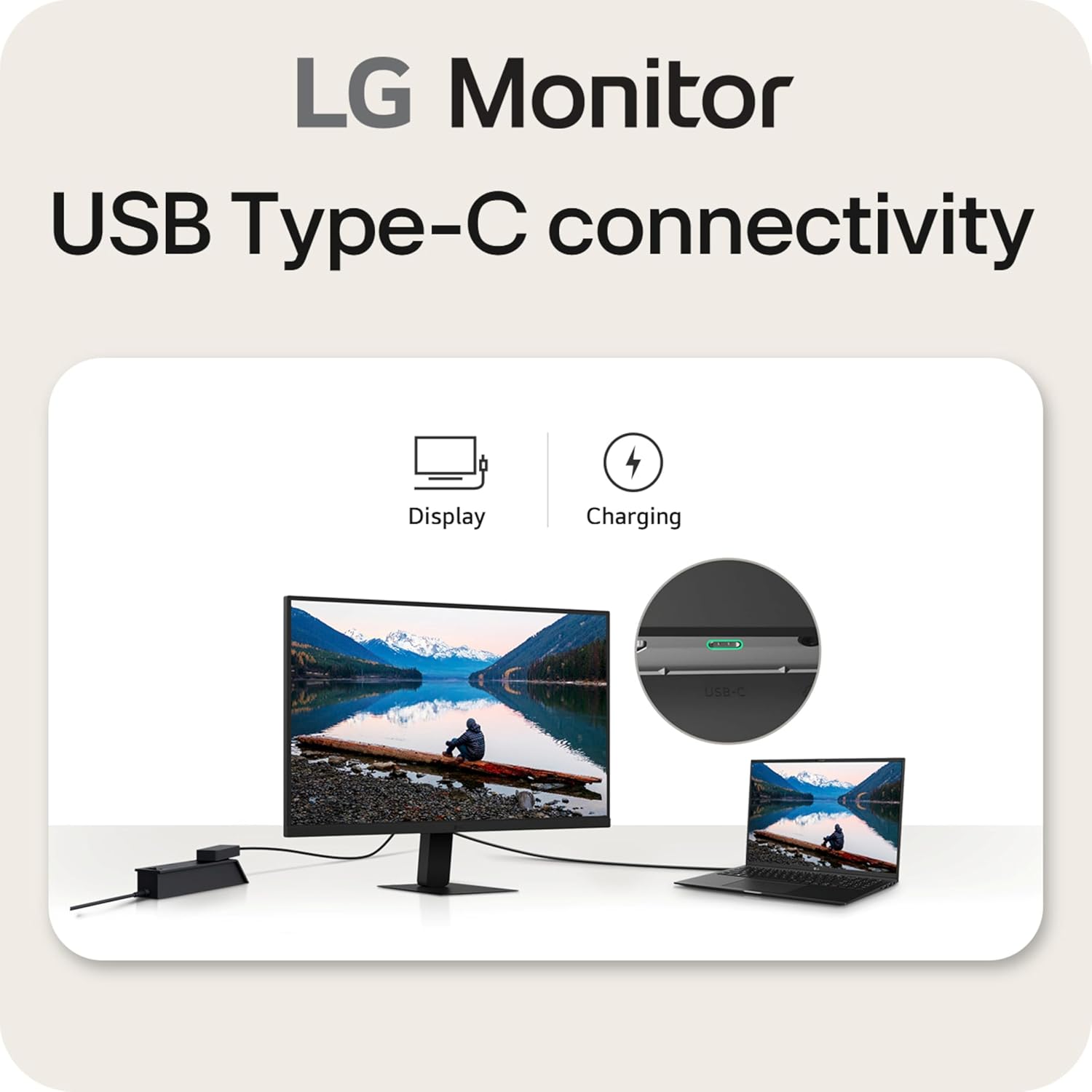
USB-C Connectivity: The USB-C port with 15W Power Delivery provides video and data transmission through a single cable. While 15W won’t charge laptops, it’s perfect for smartphones and tablets.
5ms Response Time: Fast enough for most productivity tasks and casual gaming, ensuring smooth transitions without motion blur.
OnScreen Control: LG’s software allows you to adjust monitor settings directly from your computer using a simple interface, eliminating the need to use physical buttons.
📝 Technical Specifications
- Display Size: 32 inches
- Native Resolution: 2560 × 1440 (QHD)
- Aspect Ratio: 16:9
- Panel Technology: IPS (In-Plane Switching)
- Brightness: 350 cd/m²
- Contrast Ratio: 1000:1
- Response Time: 5ms (GtG)
- Viewing Angles: 178°/178° (H/V)
- Refresh Rate: 100Hz
- HDR Support: HDR10
- Connectivity: 1× USB-C (15W PD), 2× HDMI 2.0, 1× DisplayPort 1.2
- Built-in Speakers: Yes (5W × 2)
- VESA Mount: 100×100mm
- Adjustability: Tilt (-5° to 15°)
✅ Pros
- Large 32-inch screen for better multitasking
- Smooth 100Hz refresh rate
- HDR10 support
- Reader Mode reduces eye strain
- Flicker Safe technology
- USB-C connectivity included
- Built-in speakers
- OnScreen Control software
- Competitive pricing for the features
❌ Cons
- Limited ergonomic adjustments (tilt only)
- 15W USB-C insufficient for laptop charging
- sRGB color gamut (not wide gamut)
- Basic stand design
- QHD resolution may seem lower at 32 inches
💼 Best For
General office productivity users, multitaskers needing screen real estate, readers and writers who appreciate Reader Mode, professionals on video calls (built-in speakers), budget-conscious buyers wanting a large display, and users prioritizing eye comfort features.
🎯 Who Should Skip This
Users requiring extensive ergonomic adjustments, professionals needing USB-C laptop charging, creative professionals requiring wide color gamuts, those wanting sharp pixel density at 32 inches, and users in need of height or swivel adjustments.

- Vivid Visuals at Wide Viewing Angles – Experience exceptional picture quality with the 32″ QHD (2560×1440) display, with…
8. XIAOMI 2K Monitor A27Qi – Best Budget Monitor with Color Accuracy


Screen Size: 27″ | Resolution: QHD (2560×1440) | Panel: IPS | Refresh Rate: 100Hz
![Monitor Icon] The XIAOMI A27Qi delivers impressive color accuracy and features at a budget-friendly price point, making professional-grade color performance accessible to more users.
✨ Key Highlights
Exceptional Color Accuracy: With Delta E < 2 color accuracy, this monitor rivals displays costing significantly more. For reference, Delta E < 3 is considered professional-grade, and this monitor exceeds that standard.
Wide Color Gamut: Covers 95% DCI-P3 and 100% sRGB color spaces, making it suitable for photo editing, graphic design, and video work. This is rare in budget-tier monitors.
100Hz Refresh Rate: The smooth 100Hz refresh rate provides responsive performance for both work and casual entertainment, making scrolling and cursor movements feel fluid.
Low Blue Light Mode: Multiple low blue light settings help reduce eye strain during extended work sessions without dramatically shifting colors like some blue light filters.
Adjustable Stand: Unlike many budget monitors, the A27Qi includes height, tilt, and swivel adjustments, allowing you to find a comfortable viewing position.
Minimalist Design: The thin bezels and clean aesthetic give this monitor a premium appearance that belies its affordable positioning.
QHD Resolution: At 27 inches, the 2560×1440 resolution provides 109 PPI—sharp enough for detailed work without the performance overhead of 4K.
📝 Technical Specifications
- Display Size: 27 inches
- Native Resolution: 2560 × 1440 (QHD)
- Aspect Ratio: 16:9
- Panel Technology: IPS (In-Plane Switching)
- Brightness: 300 cd/m²
- Contrast Ratio: 1000:1
- Response Time: 6ms (typical)
- Viewing Angles: 178°/178° (H/V)
- Refresh Rate: 100Hz
- Color Accuracy: ΔE < 2
- Color Gamut: 95% DCI-P3, 100% sRGB
- Connectivity: 2× HDMI 2.0, 1× DisplayPort 1.2
- Built-in Speakers: No
- VESA Mount: 75×75mm
- Adjustability: Height, Tilt, Swivel
✅ Pros
- Exceptional color accuracy (ΔE < 2)
- Wide color gamut (95% DCI-P3)
- Smooth 100Hz refresh rate
- Adjustable stand (height, tilt, swivel)
- Low blue light modes
- Thin bezels
- Excellent value for the color accuracy offered
- QHD resolution at perfect size
❌ Cons
- No USB-C connectivity
- No built-in speakers
- 6ms response time higher than gaming monitors
- Lower brightness (300 cd/m²) than premium options
- Limited brand recognition for warranty support
💼 Best For
Budget-conscious creative professionals, hobbyist photographers and designers, students in creative fields, home office users wanting color accuracy, content creators on a budget, and anyone seeking professional color performance without premium pricing.
🎯 Who Should Skip This
Users requiring USB-C connectivity, professionals needing built-in speakers for video calls, competitive gamers requiring sub-4ms response times, those wanting maximum brightness for bright rooms, and users who prioritize established brand warranties.

- Immersive 2K QHD Clarity & Smooth 100Hz Visuals: Experience stunning detail and fluid motion with the 27-inch IPS displa…
9. ViewSonic VX3276-2K-MHD 32″ – Best Value Large Screen Monitor


Screen Size: 32″ | Resolution: QHD (2560×1440) | Panel: IPS | Refresh Rate: 75Hz
![Monitor Icon] The ViewSonic VX3276-2K-MHD offers a rare combination: a large 32-inch display with QHD resolution at an accessible price point, all wrapped in a stylish design with ultra-thin bezels.
✨ Key Highlights
Ultra-Thin Bezels: The nearly borderless design creates an immersive viewing experience and makes this monitor excellent for multi-monitor setups where bezels would be distracting.
Large 32-Inch Display: Provides substantial screen real estate for multitasking without the cost and performance demands of a 4K display. Perfect for spreadsheets, documents, and multiple application windows.
Versatile Connectivity: Includes HDMI, DisplayPort, and Mini DisplayPort inputs, offering flexibility for connecting various devices including laptops, desktops, and gaming consoles.
75Hz Refresh Rate: Higher than standard 60Hz, the 75Hz refresh rate provides smoother scrolling and cursor movement, improving the overall visual experience.
IPS Panel Quality: Delivers accurate colors and wide viewing angles, ensuring the image looks consistent whether viewed straight-on or from the side—important for collaborative work.
Sleek Design: The modern aesthetic with metal stand and slim profile looks professional in any home office or corporate environment.
Built-In Speakers: Integrated speakers provide convenient audio for video calls and casual media consumption without requiring external speakers.
📝 Technical Specifications
- Display Size: 32 inches
- Native Resolution: 2560 × 1440 (QHD)
- Aspect Ratio: 16:9
- Panel Technology: IPS (In-Plane Switching)
- Brightness: 250 cd/m²
- Contrast Ratio: 1200:1
- Response Time: 4ms (GtG)
- Viewing Angles: 178°/178° (H/V)
- Refresh Rate: 75Hz
- Color Gamut: 100% sRGB
- Connectivity: 1× HDMI, 1× DisplayPort, 1× Mini DisplayPort
- Built-in Speakers: Yes (2× 3W)
- VESA Mount: 100×100mm
- Adjustability: Tilt (-5° to 20°)
✅ Pros
- Excellent value for 32-inch size
- Ultra-thin bezels for immersive viewing
- Multiple connectivity options
- 75Hz refresh rate
- Good color accuracy (100% sRGB)
- Stylish, modern design
- Built-in speakers included
- 4ms response time adequate for most uses
❌ Cons
- Limited ergonomic adjustments (tilt only)
- Lower brightness (250 cd/m²)
- No USB-C connectivity
- Basic stand without height adjustment
- Pixel density lower at 32 inches
- No USB hub functionality
💼 Best For
Budget-conscious users wanting large screens, multitaskers needing screen real estate, users building multi-monitor setups (thin bezels), general office productivity, casual gamers and content consumers, and anyone seeking great value in a large display.
🎯 Who Should Skip This
Users requiring ergonomic height adjustment, professionals needing USB-C connectivity, those working in very bright environments (low brightness), color-critical work requiring wide gamut, and users wanting sharp pixel density.

- VERSATILE MONITOR: 32 Inch QHD (2560x1440p) IPS monitor with thin bezels and 75Hz refresh rate
- ENHANCED VIEWING COMFORT: Flicker-Free technology and Blue Light Filter for reduced eye fatigue
10. ViewSonic VS2725-2K 27″ – Best Entry-Level Office Monitor


Screen Size: 27″ | Resolution: QHD (2560×1440) | Panel: IPS | Refresh Rate: 100Hz
![Monitor Icon] The ViewSonic VS2725-2K delivers solid performance for standard office work at an entry-level price point, making it an excellent choice for budget-conscious professionals who don’t need premium features.
✨ Key Highlights
QHD Resolution: The 2560×1440 resolution at 27 inches provides clear, sharp text and images with 109 PPI—ideal for document work, spreadsheets, and web browsing without scaling issues.
100Hz Refresh Rate: Smoother than standard 60Hz monitors, the 100Hz refresh rate reduces motion blur and makes everyday tasks like scrolling feel more responsive.
Variable Refresh Rate: Synchronizes the display’s refresh rate with your graphics card to eliminate screen tearing during video playback and casual gaming.
Multiple Connectivity Options: HDMI and DisplayPort inputs provide flexibility for connecting various devices without requiring adapters.
IPS Panel Technology: Ensures accurate colors and wide viewing angles, important for sharing your screen during collaborative work or video calls.
Energy Efficient: Lower power consumption compared to larger monitors helps reduce electricity costs over time.
Simple Setup: Straightforward out-of-box experience with minimal configuration needed—perfect for users who want to start working immediately.
📝 Technical Specifications
- Display Size: 27 inches
- Native Resolution: 2560 × 1440 (QHD)
- Aspect Ratio: 16:9
- Panel Technology: IPS (In-Plane Switching)
- Brightness: 250 cd/m²
- Contrast Ratio: 1000:1
- Response Time: 5ms (typical)
- Viewing Angles: 178°/178° (H/V)
- Refresh Rate: 100Hz
- Variable Refresh Rate: Yes
- Connectivity: 2× HDMI 1.4, 1× DisplayPort 1.2
- Built-in Speakers: No
- VESA Mount: 100×100mm
- Adjustability: Tilt
✅ Pros
- Affordable entry-level pricing
- QHD resolution for clear text
- Smooth 100Hz refresh rate
- Variable refresh rate support
- Multiple input options
- IPS panel with good colors
- Low power consumption
- Simple, straightforward setup
❌ Cons
- Basic stand with tilt only
- No built-in speakers
- Lower brightness (250 cd/m²)
- No USB-C connectivity
- No height or swivel adjustment
- Standard sRGB color gamut
- No USB hub
💼 Best For
Budget-conscious office workers, students and educators, home office setups, general productivity tasks, users with external speakers, basic video conferencing, document-heavy work, and anyone needing a reliable, affordable QHD display.
🎯 Who Should Skip This
Users requiring ergonomic adjustments, professionals needing USB-C connectivity, those wanting built-in speakers, users in bright environments, creative professionals needing wide color gamuts, and anyone requiring advanced features like USB hubs.

- VERSATILE MONITOR: 27 Inch Quad HD (2560x1440p) LED monitor with thin bezels and 100Hz refresh rate
- FRAMELESS DESIGN: Featuring a frameless edge-to-edge screen that delivers an immersive viewing experience and easy multi…
🎓 How to Choose the Right Monitor for Work From Home
Selecting the perfect monitor involves understanding your specific needs and how different features impact your daily workflow. Here’s a comprehensive guide to help you make an informed decision.
Resolution Considerations
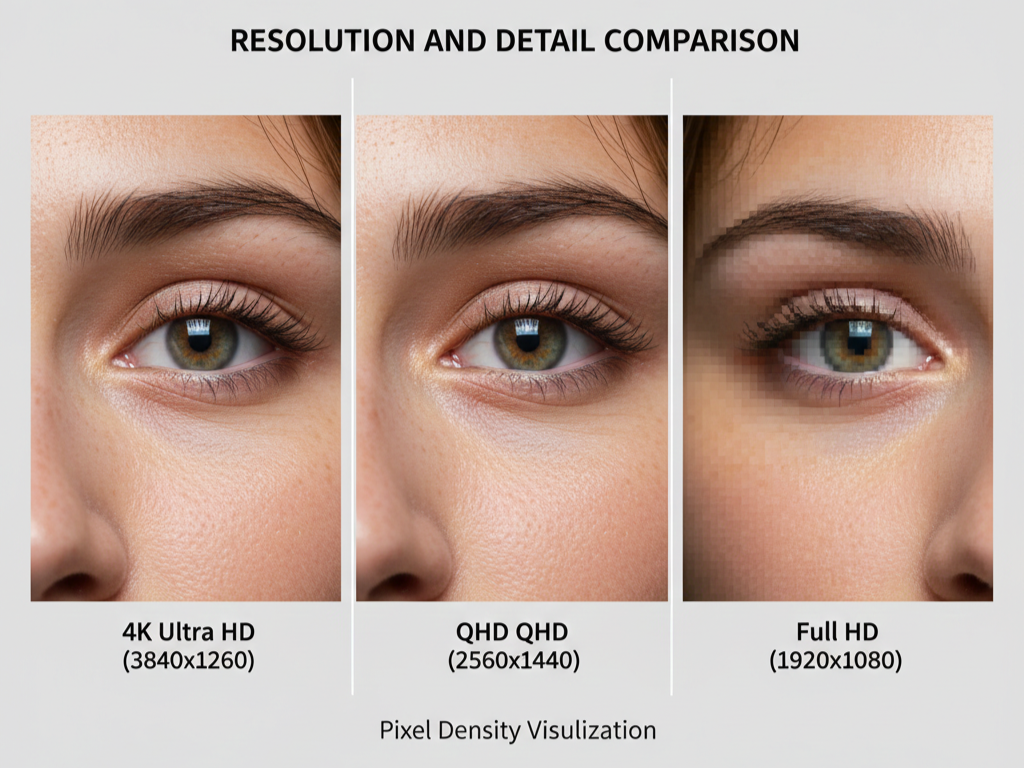
4K (3840×2160): Provides exceptional clarity and screen real estate, ideal for:
- Photo and video editing requiring fine detail
- Large spreadsheets with many columns
- Multitasking with multiple windows
- Viewing 4K content
⚠️ Note: Requires more powerful graphics hardware and some applications may need scaling on smaller screens.
QHD (2560×1440): The sweet spot for most professionals, offering:
- Sharp text and images at 27-32 inches
- Better performance than 4K
- No scaling issues with applications
- Excellent multitasking capability
- Lower cost than 4K
Full HD (1920×1080): Generally outdated for work-from-home setups unless:
- Budget is extremely limited
- Using a screen smaller than 24 inches
- Running older hardware
Screen Size Selection
27 inches: The most popular size for home offices
- ✅ Fits most desk spaces
- ✅ Perfect for QHD resolution (109 PPI)
- ✅ Comfortable viewing distance (24-36 inches)
- ✅ Balances screen real estate and desk space
32 inches: For those needing maximum space
- ✅ Excellent for multitasking
- ✅ Great for spreadsheets and data work
- ✅ Better for QHD than Full HD (pixel density)
- ⚠️ Requires more desk depth (30-40 inches viewing distance)
24 inches: Suitable for compact spaces
- ✅ Space-efficient
- ✅ Lower cost
- ⚠️ Limited screen real estate
- ⚠️ Best with Full HD, not QHD
Panel Technology Explained
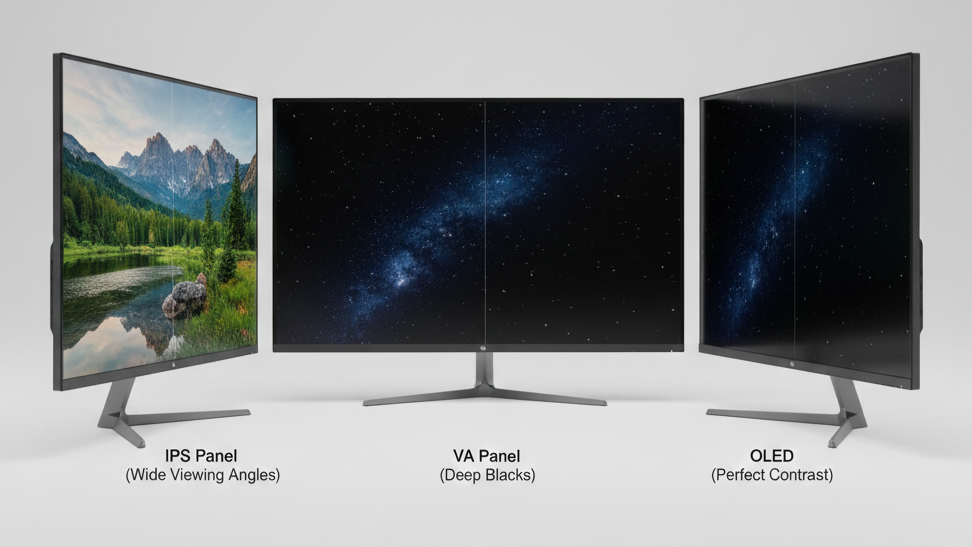
IPS (In-Plane Switching):
- ✅ Excellent color accuracy
- ✅ Wide viewing angles (178°)
- ✅ Best for color-critical work
- ❌ Lower contrast than VA
- ❌ Potential IPS glow in corners
- 💼 Best for: General office work, creative professionals, collaborative environments
VA (Vertical Alignment):
- ✅ Superior contrast ratios (1500:1 or higher)
- ✅ Deep blacks
- ✅ Good for dark-themed applications
- ❌ Narrower viewing angles than IPS
- ❌ Potential ghosting with fast motion
- 💼 Best for: Content consumption, working with dark themes, users prioritizing contrast
OLED (Organic Light-Emitting Diode):
- ✅ Perfect blacks and infinite contrast
- ✅ Exceptional color accuracy
- ✅ Lightning-fast response times
- ❌ Risk of burn-in with static content
- ❌ Higher cost
- ❌ Lower peak brightness
- 💼 Best for: Creative professionals, hybrid work/entertainment use, those wanting ultimate image quality
Refresh Rate Impact
60Hz: Standard refresh rate
- Adequate for basic office work
- May feel sluggish compared to higher rates
- Lower cost
75-100Hz: The sweet spot for productivity
- ✅ Noticeably smoother scrolling
- ✅ Reduced eye strain
- ✅ Better for casual gaming
- ✅ Minimal cost increase over 60Hz
120Hz+: Premium smoothness
- Excellent for all tasks
- Significant improvement in responsiveness
- Higher cost
- Best for hybrid work/gaming setups
USB-C Connectivity Benefits
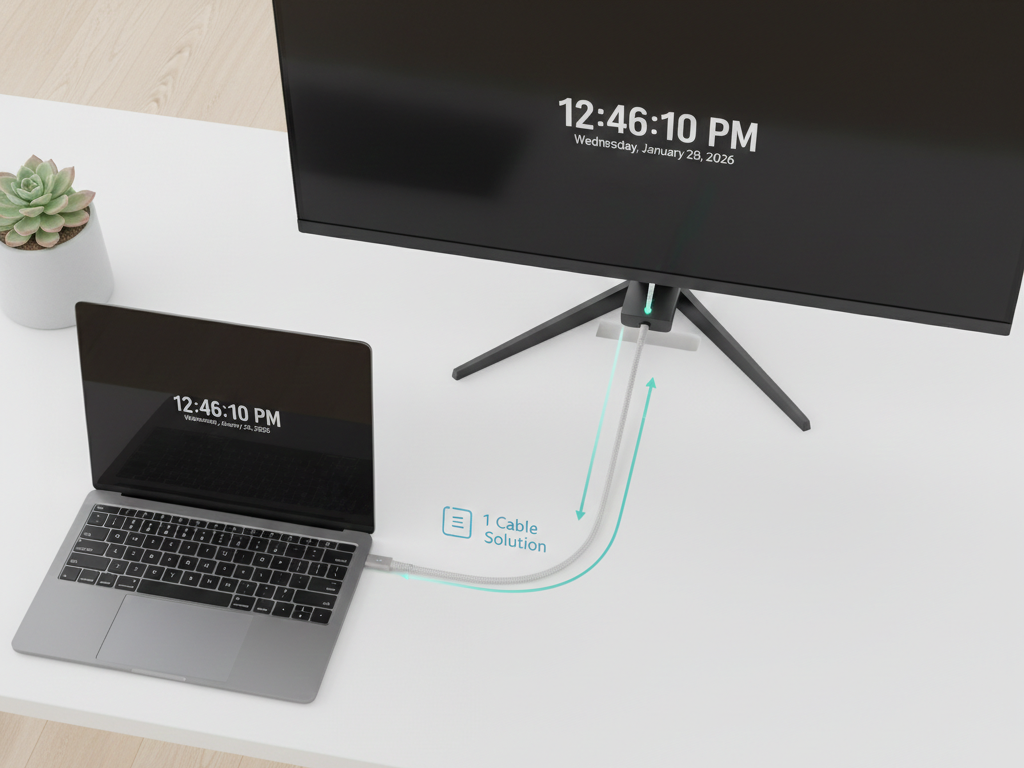
USB-C with Power Delivery revolutionizes workspace organization:
Single Cable Solution:
- Video transmission
- Data transfer
- Laptop charging
- Peripheral connectivity (with USB hub)
Power Delivery Wattage:
- 15W: Charges phones/tablets only
- 65W: Charges most standard laptops
- 90W: Charges high-performance laptops and MacBook Pros
Who Needs USB-C:
- ✅ Laptop users
- ✅ Those wanting minimal cable clutter
- ✅ Professionals working from multiple locations
- ✅ Users with USB-C laptops
Who Can Skip It:
- Desktop PC users
- Those with dedicated docking stations
- Budget-conscious buyers (adds to cost)
Ergonomics Importance
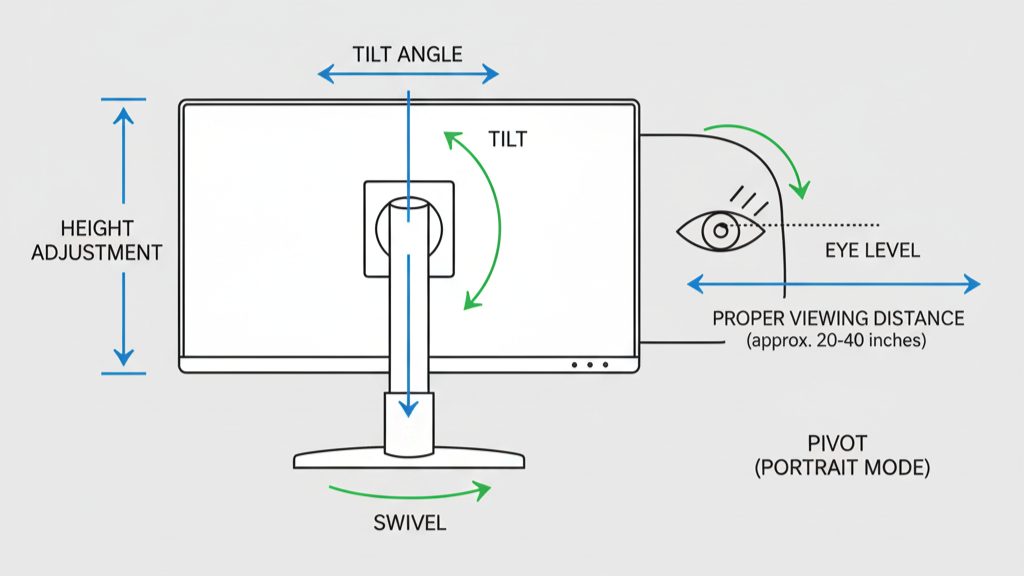
Proper ergonomics prevent neck strain, back pain, and eye fatigue:
Essential Adjustments:
- Height: Top of screen should be at or slightly below eye level
- Tilt: 10-20° back tilt reduces glare and neck strain
- Swivel: Allows easy sharing of screen content
- Pivot: Rotate to portrait mode for coding or document work
Fixed vs. Adjustable Stands:
- Fixed (tilt only): Requires monitor arms or books to raise to proper height
- Fully adjustable: More expensive but worth it for all-day comfort
💡 Pro Tip: If a monitor has limited adjustability, consider investing in a VESA monitor arm for complete positioning freedom.
Color Accuracy for Different Professions

Creative Professionals (Photographers, Designers, Video Editors):
- Require: 95%+ DCI-P3, Delta E < 3
- Look for: Factory calibration, uniformity technology
- Consider: Hardware calibration support
General Office Work (Documents, Spreadsheets, Email):
- Require: 100% sRGB coverage
- Look for: Good brightness and contrast
- Consider: Anti-glare coating
Programmers and Developers:
- Require: Sharp text rendering
- Look for: QHD or 4K resolution, anti-flicker
- Consider: Pivot functionality for portrait mode
Financial Analysts and Data Workers:
- Require: Large screen real estate
- Look for: 27″+ size, QHD or 4K
- Consider: Multiple monitor compatibility
Eye Comfort Features
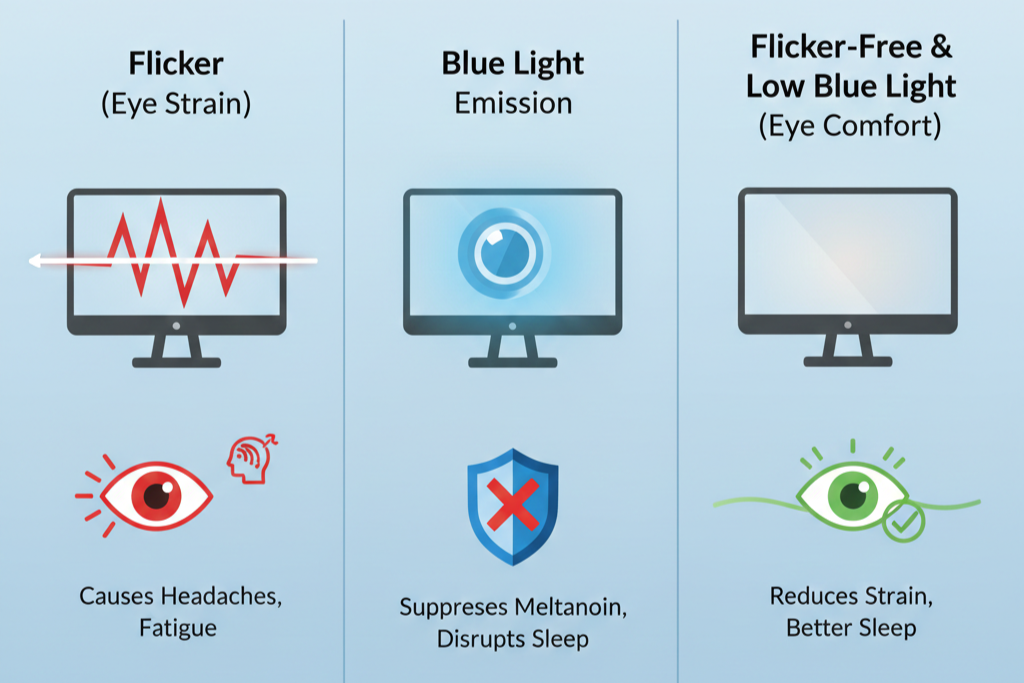
Long work-from-home sessions demand eye-friendly features:
Flicker-Free Technology:
- Eliminates screen flicker at all brightness levels
- Reduces eye strain and headaches
- Essential for extended computer use
Low Blue Light:
- Reduces blue light emission
- Lessens eye strain, especially evening work
- Look for modes that don’t drastically shift colors
Anti-Glare Coating:
- Reduces reflections from windows and lights
- Matte finish preferred for bright offices
- Some coatings can slightly reduce sharpness
Brightness Uniformity:
- Consistent brightness across entire screen
- Prevents eye strain from bright spots
- More common in professional-grade monitors
Connectivity Requirements
Essential Ports:
- HDMI 2.0+: Standard for most devices
- DisplayPort 1.2+: Better for high refresh rates
- USB-C (optional but valuable): Single-cable solution
Additional Useful Ports:
- USB Hub: Connect peripherals directly to monitor
- Audio Out: Use better speakers or headphones
- KVM Switch: Control multiple computers with one keyboard/mouse
How Many Ports Do You Need?
- One computer: 1-2 video inputs sufficient
- Multiple devices (laptop + desktop): 3+ inputs recommended
- Future-proofing: Extra ports add flexibility
🔧 Essential Monitor Features Explained
Understanding Color Gamuts
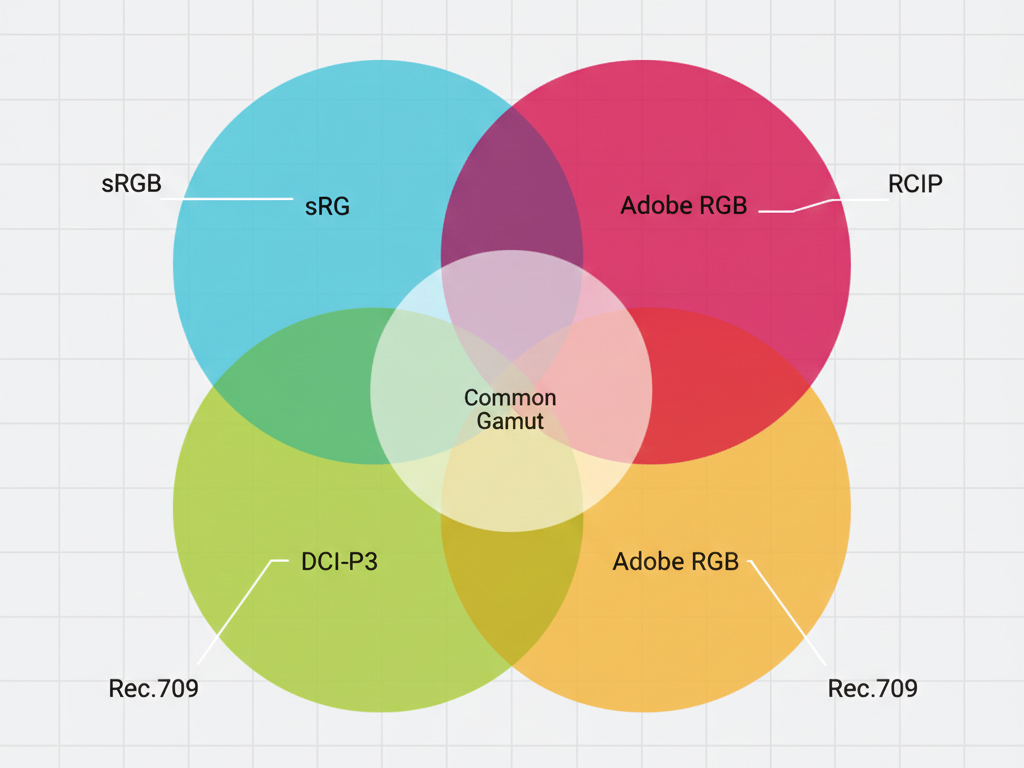
sRGB (Standard RGB):
- Industry standard for web content
- 100% coverage is baseline for professional work
- Most monitors achieve this
DCI-P3 (Digital Cinema Initiative):
- 25% larger color space than sRGB
- Standard for digital cinema and high-end displays
- 95%+ coverage ideal for photo/video work
- Apple’s color standard for devices
Adobe RGB:
- Wider than sRGB, especially in green tones
- Important for print work
- Less common in modern workflows (DCI-P3 more relevant)
Rec.709:
- Standard for HD video production
- Similar to sRGB
- Important for video editors
Delta E Color Accuracy
Delta E measures color difference between displayed and actual colors:
- ΔE < 1: Professional printing work
- ΔE < 2: Excellent color accuracy (XIAOMI A27Qi)
- ΔE < 3: Professional color work threshold
- ΔE 3-6: Good for general use
- ΔE > 6: Noticeable color inaccuracy
💡 For most users: ΔE < 3 is professional-grade and sufficient for color-critical work.
Contrast Ratio Impact
Contrast ratio is the difference between brightest white and darkest black:
1000:1 (Typical IPS):
- Standard for most IPS monitors
- Adequate for general use
- Blacks appear dark gray
1500:1+ (VA Panels):
- Deeper blacks
- Better for dark-themed applications
- Improved readability
Infinite (OLED):
- Perfect blacks
- Best contrast possible
- Exceptional for all content types
Real-World Impact:
- Higher contrast = less eye strain
- Better for dark mode users
- Important for HDR content
HDR (High Dynamic Range)
HDR expands the range of brightness and color:
HDR10 (Basic):
- Entry-level HDR
- Noticeable improvement over SDR
- Common in mid-range monitors
HDR400/600/1000 (VESA DisplayHDR):
- Number indicates peak brightness (nits)
- HDR400: Basic HDR experience
- HDR600: Good HDR
- HDR1000: Excellent HDR
HDR True Black 400 (OLED):
- OLED-specific standard
- Lower brightness but perfect blacks
- Superior HDR experience to LCD HDR400
Do You Need HDR?
- ✅ Photo/video professionals
- ✅ Content consumption
- ❌ Basic office work
- ❌ Text-heavy applications
Response Time Matters
Response time is how quickly pixels change colors:
1-3ms: Gaming-grade
- Eliminates motion blur
- Essential for competitive gaming
- Overkill for office work
4-5ms: Productivity sweet spot
- Adequate for all office tasks
- Good for casual gaming
- Most work-from-home users
6-8ms: Basic office work
- Acceptable for static content
- May show ghosting in videos
- Lower cost
💡 Reality Check: Most people won’t notice differences between 4ms and 8ms in productivity applications.
Brightness Requirements
Measured in cd/m² (candelas per square meter) or “nits”:
250-300 nits:
- Adequate for dim/normal lighting
- May struggle in bright offices
- Lower cost
300-400 nits:
- Comfortable in most environments
- Standard for quality monitors
- Good for office settings
400-500 nits:
- Excellent for bright rooms
- Better HDR performance
- Premium feature
500+ nits:
- Bright room specialist
- Professional HDR
- Higher cost
Your Lighting Environment:
- Dark/controlled lighting: 250-300 nits sufficient
- Normal office: 300-400 nits ideal
- Bright/window-facing: 400+ nits recommended
Viewing Angles Explained
Viewing angles indicate color/contrast consistency when viewed off-center:
178°/178° (IPS/OLED):
- Virtually no color shift
- Excellent for collaboration
- Best for multiple viewers
160-170° (VA):
- Noticeable color shift at angles
- Fine for single-user scenarios
- May look washed out from sides
Why It Matters:
- Collaborative work environments
- Adjusting seating position
- Multi-monitor setups (side monitors viewed at angles)
❓ Frequently Asked Questions
What resolution is best for a 27-inch monitor?
QHD (2560×1440) is ideal for 27-inch monitors. This provides 109 pixels per inch, delivering sharp text and images without requiring scaling. 4K on a 27-inch screen offers marginal visual improvements but requires significantly more graphics processing power and may necessitate scaling in some applications, potentially defeating the purpose of higher resolution.
For work-from-home use, QHD at 27 inches hits the sweet spot between clarity, performance, and compatibility.
Is 4K worth it for productivity work?
4K is worth it for specific use cases:
Yes, if you:
- Work with large spreadsheets and need maximum screen real estate
- Edit 4K photos or videos professionally
- Use a 32-inch or larger monitor (maintains pixel density)
- Have powerful graphics hardware
- Multitask extensively with many windows
No, if you:
- Primarily work with documents and email
- Use a 27-inch or smaller monitor
- Have integrated or older graphics
- Work with applications that don’t scale well
- Prefer performance over resolution
For most office workers, QHD provides better value with excellent clarity and no scaling issues.
Do I really need USB-C on my monitor?
USB-C with Power Delivery is highly valuable for laptop users:
Benefits:
- Single-cable connection (video, data, power)
- Dramatically reduces desk clutter
- Easy to disconnect/reconnect when mobile
- Often includes USB hub functionality
- Future-proofing as USB-C becomes standard
You need it if:
- You use a laptop as your primary computer
- Your laptop supports USB-C video output
- You want minimal cables on your desk
- You frequently work from different locations
You can skip it if:
- You use a desktop computer
- You already have a docking station
- Your laptop doesn’t support USB-C video
- You’re on a tight budget (adds cost)
Power Delivery Note: Ensure the monitor provides enough wattage (65W minimum, 90W ideal for MacBook Pro).
What’s the difference between IPS and VA panels?
IPS (In-Plane Switching):
- ✅ Better color accuracy
- ✅ Wider viewing angles (178°)
- ✅ Consistent image quality off-axis
- ❌ Lower contrast ratios (1000:1 typical)
- ❌ Potential IPS glow in corners
- 💼 Best for: Color-critical work, collaboration, wide viewing angles
VA (Vertical Alignment):
- ✅ Superior contrast ratios (1500:1+)
- ✅ Deeper blacks
- ✅ Better for dark-themed applications
- ❌ Narrower viewing angles
- ❌ Potential color shift when viewed off-angle
- 💼 Best for: Content consumption, single-user setups, dark mode users
For work-from-home: IPS is generally preferable due to better viewing angles and color accuracy, unless you prioritize contrast and primarily work alone.
Is a 75Hz or 100Hz refresh rate noticeable?
Yes, higher refresh rates are noticeably smoother even in productivity applications:
60Hz (Standard):
- Baseline experience
- Adequate for static content
- May feel sluggish after experiencing higher rates
75-100Hz:
- Noticeably smoother scrolling
- More responsive cursor movement
- Reduced eye strain for some users
- Better for multitasking
- Minimal cost increase
120Hz+:
- Very smooth experience
- Excellent for all uses
- Premium feature
Real-World Impact: Most users notice the difference when scrolling documents, moving windows, or using mouse cursors. The improvement is subtle but contributes to a more pleasant, less fatiguing experience during extended work sessions.
Recommendation: Choose 75Hz+ if available at similar price points, but don’t sacrifice other features just for refresh rate in productivity monitors.
How important is color accuracy for my work?
Importance depends entirely on your profession:
Critical (Need ΔE < 3, Wide Gamut):
- Professional photographers
- Graphic designers
- Video editors
- Print designers
- UI/UX designers
- Anyone sending color-critical work to clients
Moderately Important (100% sRGB Sufficient):
- Marketing professionals
- Content creators
- Casual photo editing
- General creative work
Not Critical (Any Modern Monitor Adequate):
- Office productivity (documents, spreadsheets)
- Programming and development
- Data analysis
- Email and communication
- General business tasks
Investment Advice: If color isn’t critical to your work, invest in other features like ergonomics, screen size, or USB-C connectivity instead of paying premium for wide color gamut displays.
Should I get one large monitor or two smaller ones?
Each approach has distinct advantages:
One Large Monitor (32″+):
- ✅ Single, immersive display
- ✅ No bezel interruption
- ✅ Easier cable management
- ✅ Lower total cost
- ✅ Better for gaming/entertainment
- ❌ Less flexibility in window arrangement
- ❌ Requires more head movement
Two Monitors:
- ✅ Better multitasking (dedicated space per task)
- ✅ Can use different resolutions/orientations
- ✅ Easier reference work (document on one, work on other)
- ✅ Better for comparison tasks
- ❌ Bezel gap in center
- ❌ More desk space required
- ❌ Higher total cost
- ❌ More cables to manage
Best Practice: If budget allows, many professionals find one large primary monitor (27-32″) plus one secondary display provides optimal flexibility.
For Work-From-Home: A single high-quality 32-inch 4K or QHD monitor often provides sufficient space for most professionals, with better image quality than two budget displays.
What about curved monitors for work?
Curved monitors have specific advantages and limitations:
Benefits:
- More immersive experience
- Potentially less head movement on ultrawide displays
- Can reduce reflections at screen edges
- Some users report less eye strain
Drawbacks:
- Not ideal for color-critical work (potential distortion)
- Takes up more desk depth
- Higher cost than flat equivalents
- Can cause issues with straight-line work (CAD, design)
- Not ideal for multi-monitor setups
Recommendation for Work-From-Home:
- Skip curved for standard 27″ monitors (minimal benefit)
- Consider curved for ultrawide displays (34″+)
- Avoid curved for professional photo/design work
- Fine for general office productivity and entertainment
How much should I spend on a work-from-home monitor?
Budget allocation should match your usage:
$200-$350 (Entry-Level):
- Adequate for basic office work
- QHD resolution, decent color
- Limited adjustability
- Good for: Students, casual users, tight budgets
$350-$600 (Sweet Spot):
- Best value for most professionals
- QHD or 4K, USB-C, good colors
- Better ergonomics and features
- Good for: Most office workers, remote professionals
$600-$900 (Professional):
- Factory calibration, wide gamut
- Premium build quality
- Excellent ergonomics
- Good for: Creative professionals, designers, photographers
$900+ (Premium):
- OLED or highest-end LCD
- Best-in-class features
- Professional color accuracy
- Good for: High-end creative work, enthusiasts
ROI Perspective: If you work 8 hours daily, even a $600 monitor costs less than $0.10 per hour over 3 years. Given its impact on productivity and comfort, don’t cheap out on the tool you stare at all day.
Can I use a gaming monitor for work?
Yes, gaming monitors can excellent for work:
Advantages:
- High refresh rates (smooth scrolling)
- Fast response times (crisp motion)
- Often good color accuracy (modern models)
- Premium build quality
- Excellent ergonomics
Potential Issues:
- Aggressive “gaming” aesthetics
- Curved screens (may not suit all work)
- Higher cost for features you may not need
- Sometimes sacrifice color accuracy for speed
Good Gaming-Work Hybrid Features:
- 27″ QHD resolution
- 100-144Hz refresh rate
- IPS panel for colors
- Adjustable stand
- USB-C (if available)
Recommendation: Many modern gaming monitors make excellent work displays. Look for IPS panels with good color coverage and avoid extreme curves or flashy RGB if professionalism matters.
🎯 Final Recommendations by Use Case
Best Overall: Dell S3225QS
Perfect balance of size, resolution, and features for most professionals. The 31.5-inch 4K display with excellent contrast and smooth 120Hz performance makes it versatile for any work-from-home scenario.
Best for Mac Users: BenQ MA320U
Seamless macOS integration, Mac Color Match technology, and 90W USB-C PD make this the ultimate Mac companion. Factory calibrated for color-critical work.
Best for Professional Content Creation: ASUS ProArt PA278CV
Calman verified color accuracy (ΔE < 2), DisplayPort daisy-chaining, and comprehensive ergonomics make this the go-to choice for photographers, video editors, and content creators who demand verified professional color performance.
Best Budget Option: XIAOMI A27Qi
Exceptional color accuracy (ΔE < 2) and wide color gamut at an affordable price. Perfect for budget-conscious users who still need professional-grade color performance.
Best for Creative Work: Samsung Odyssey OLED G5
Perfect blacks, infinite contrast, and exceptional color accuracy make this the choice for photographers, video editors, and graphic designers who demand the best image quality.
Best USB-C Value: Dell S2722DC
Comprehensive features including 65W Power Delivery, full ergonomic adjustability, and QHD resolution at a competitive price point.
Best Large Budget Display: ViewSonic VX3276-2K-MHD
32-inch screen with ultra-thin bezels and solid performance at an accessible price for those wanting maximum screen real estate.
📝 Conclusion
Choosing the right monitor for work-from-home significantly impacts your daily productivity, comfort, and job satisfaction. Whether you prioritize color accuracy, screen real estate, USB-C connectivity, or budget value, there’s a monitor in this guide that matches your needs.
Key Takeaways:
- Resolution: QHD (2560×1440) is the sweet spot for 27-inch displays; 4K shines at 32 inches
- Panel Type: IPS for color accuracy and viewing angles; VA for superior contrast; OLED for ultimate quality
- Refresh Rate: 75-100Hz provides noticeable smoothness over 60Hz for minimal cost increase
- USB-C: Invaluable for laptop users; ensure adequate Power Delivery wattage (65W minimum, 90W ideal)
- Ergonomics: Don’t overlook height adjustment—proper positioning prevents neck and back strain
- Budget Wisely: Your monitor is a long-term investment in your daily comfort and productivity
The monitors reviewed here represent the best options available for work-from-home professionals across different budgets and requirements. Take time to assess your specific needs—screen size, resolution, connectivity, and color accuracy requirements—then choose the monitor that best aligns with how you actually work.
Remember: You spend hours each day looking at your monitor. Investing in the right one isn’t an expense—it’s an investment in your productivity, comfort, and professional success.
Disclaimer: This article contains affiliate links. We may earn a commission from purchases made through these links at no additional cost to you. All opinions and recommendations are our own based on extensive research and analysis. Product specifications and features are accurate as of the publication date and may be subject to change by manufacturers.