
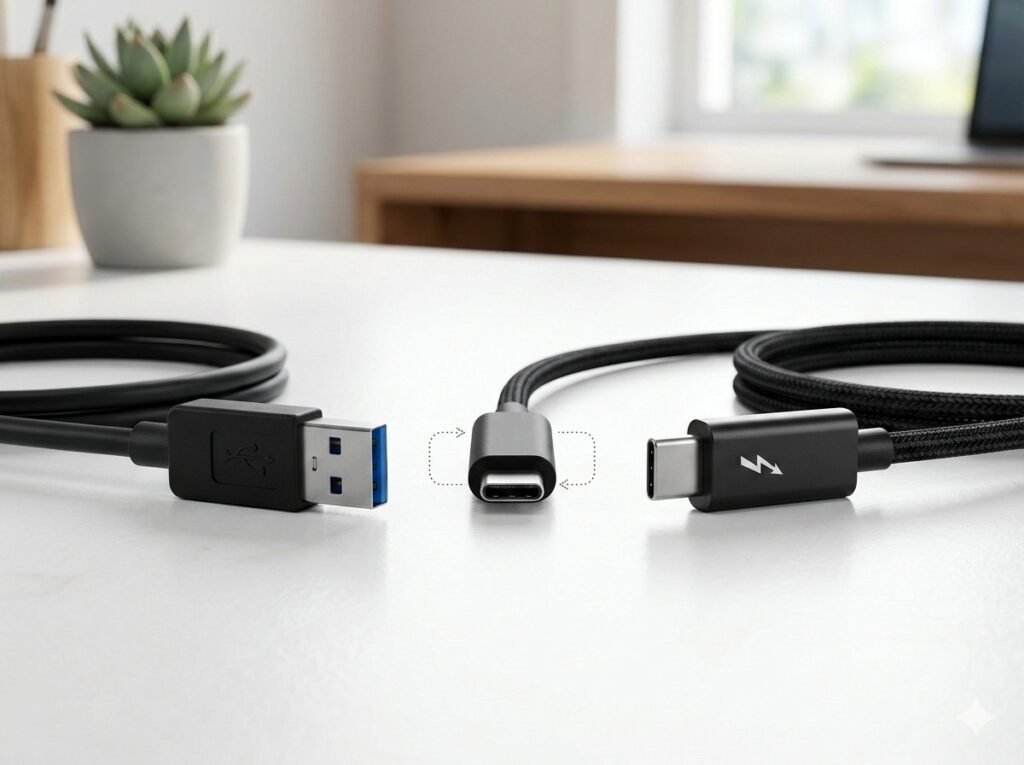
USB port confusion is the single most common tech support issue across consumer electronics — identical-looking USB-C ports deliver wildly different capabilities, cables that appear identical perform differently, and “Thunderbolt” means something entirely different depending on generation and whether you’re using Mac or PC.
This guide explains what each USB standard actually provides, how to identify port capabilities without disassembling devices, why USB-C doesn’t automatically mean faster charging or data transfer, and the practical differences between USB protocols that determine whether your cable works for your intended use.
Quick Navigation
- USB Basics: Protocols vs Physical Connectors
- USB-A: The Legacy Connector
- USB-C: The Physical Connector
- USB Data Protocols Explained
- USB Power Delivery
- Thunderbolt: Intel’s Premium Protocol
- How to Identify Port Capabilities
- Cable Quality Matters
- Common USB Confusion
- Compatibility Rules
- FAQ
USB Basics: Protocols vs Physical Connectors
The fundamental USB confusion stems from mixing two separate concepts: the physical connector shape (USB-A, USB-C, Micro-USB) and the data/power protocol running through that connector (USB 2.0, USB 3.2, USB4, Thunderbolt).
Physical Connectors (Shape)
USB-A: The original rectangular connector. One orientation only. Found on most computers, chargers, and peripherals for 25+ years.
USB-C: Reversible oval connector. Works in either orientation. Introduced 2014, now standard on modern devices.
USB-B, Mini-USB, Micro-USB: Various legacy connectors mostly replaced by USB-C.
Data/Power Protocols (Speed and Capability)
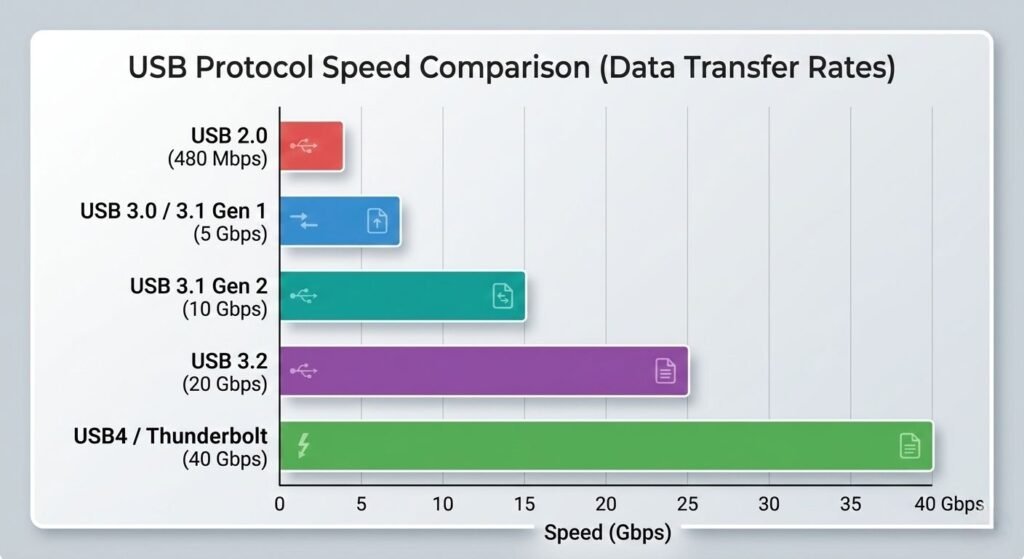
USB 2.0: 480 Mbps (60 MB/s) data transfer, 2.5W power
USB 3.0 / 3.1 Gen 1: 5 Gbps (625 MB/s) data transfer, 4.5W power
USB 3.1 Gen 2: 10 Gbps (1,250 MB/s) data transfer, 100W power with USB-PD
USB 3.2: 20 Gbps (2,500 MB/s) data transfer, 100W power with USB-PD
USB4: 40 Gbps (5,000 MB/s) data transfer, 100W power, Thunderbolt 3 compatible
Thunderbolt 3/4: 40 Gbps data, 100W power, PCIe tunneling for external GPUs/storage
Critical point: A USB-C connector can carry any of these protocols. USB-C does not automatically mean fast data or charging. The protocol determines capability, not the connector shape.
USB-A: The Legacy Rectangular Connector
USB-A is the original USB connector — rectangular, one-way insertion, found on nearly every computer and charger manufactured between 1996 and present. Despite being “legacy,” USB-A remains ubiquitous and will persist for years.
USB-A Physical Characteristics
Size: 12mm × 4.5mm rectangular connector
Orientation: One way only — the USB logo should face up when inserting. This orientation requirement is USB-A’s primary ergonomic weakness.
Durability: Rated for 1,500 insertion cycles — adequate for typical use but lower than USB-C’s 10,000 cycle rating.
Color coding: USB-A ports often use color to indicate protocol support:
- Black or white: USB 2.0 (480 Mbps)
- Blue: USB 3.0 (5 Gbps)
- Teal/cyan: USB 3.1 Gen 2 (10 Gbps)
- Red: Often indicates always-on charging capability
This color coding is voluntary and not universally followed. Some manufacturers use black for USB 3.0, making visual identification unreliable.
USB-A Protocol Support
USB 2.0 (black): Maximum 480 Mbps data transfer, 2.5W (5V @ 0.5A) power. Still common on keyboards, mice, and basic peripherals where high speed is unnecessary.
USB 3.0/3.1 Gen 1 (blue): Maximum 5 Gbps data transfer, 4.5W (5V @ 0.9A) power. Standard on most computers manufactured after 2012.
USB 3.1 Gen 2 (teal): Maximum 10 Gbps data transfer, 4.5W standard (up to 100W with USB-PD on capable ports). Rare on USB-A ports — most 10 Gbps implementations use USB-C.
Why USB-A Persists
Despite USB-C’s technical advantages, USB-A remains standard because:
Installed base: Billions of USB-A peripherals exist — keyboards, mice, flash drives, webcams, printers. Eliminating USB-A ports forces users to buy adapters or replace working devices.
Connector robustness: USB-A’s larger size and simple design make it less prone to damage than the smaller, more complex USB-C connector. For devices that rarely move (desktop peripherals), this matters.
Cost: USB-A ports and cables are cheaper to manufacture than USB-C. Budget devices continue using USB-A to reduce cost.
USB-C: The Reversible Physical Connector
USB-C is a physical connector standard introduced in 2014 that can carry multiple different protocols. Understanding this distinction prevents the most common USB-C confusion — assuming all USB-C ports are equivalent.
USB-C Physical Characteristics
Size: 8.4mm × 2.6mm oval connector — smaller than USB-A, larger than Micro-USB
Orientation: Reversible — works in either orientation. No “correct” way to insert.
Durability: Rated for 10,000 insertion cycles — approximately 7× more durable than USB-A
Pin configuration: 24 pins enabling simultaneous data, power, video, and accessory detection. This versatility is USB-C’s primary advantage — a single port can replace separate ports for charging, display, and data.
What USB-C Does NOT Guarantee
A USB-C port does not automatically provide:
- Fast data transfer (could be USB 2.0 at 480 Mbps)
- Fast charging (could be 5W standard USB charging)
- Video output (requires DisplayPort Alternate Mode support)
- Thunderbolt compatibility (requires specific chipset)
The port shape only indicates physical connector type. Protocol support varies by device and implementation. Two identical-looking USB-C ports can have completely different capabilities.
USB-C Protocol Variants
USB-C with USB 2.0: Physically USB-C but only 480 Mbps data. Common on budget smartphones and accessories where high speed is unnecessary. Uses only 4 of the 24 pins.
USB-C with USB 3.2: 5-20 Gbps data depending on Gen 1/Gen 2 implementation. Standard on mid-range and premium devices.
USB-C with USB4: 40 Gbps data, Thunderbolt 3 compatible, PCIe tunneling support. Requires USB4 certification from USB Implementers Forum.
USB-C with Thunderbolt 3/4: Full Thunderbolt capability — 40 Gbps data, dual 4K display support, external GPU support, 100W power delivery. Most capable USB-C implementation but requires Thunderbolt controller chip.
For devices leveraging USB-C’s fast data capability, see our guide to portable SSDs for video editing and gaming.
USB Data Transfer Protocols Explained
USB protocol versions determine actual data transfer speeds, power delivery capability, and feature support. Protocol and physical connector are independent — any protocol can theoretically run through any connector with appropriate cabling.
USB 2.0 (480 Mbps)
Maximum speed: 480 Megabits per second (60 Megabytes per second)
Real-world speed: 30-40 MB/s typical due to protocol overhead
Power delivery: 2.5W (5V @ 0.5A) standard, 7.5W (5V @ 1.5A) with Battery Charging specification
Common uses: Keyboards, mice, basic peripherals, budget smartphones
Why it persists: Adequate for low-bandwidth devices. Cheaper to implement than USB 3.x. Most input devices don’t need faster speeds.
USB 3.0 / USB 3.1 Gen 1 (5 Gbps)
Maximum speed: 5 Gigabits per second (625 Megabytes per second)
Real-world speed: 300-400 MB/s typical
Power delivery: 4.5W (5V @ 0.9A) standard
Naming confusion: Originally “USB 3.0,” later renamed “USB 3.1 Gen 1” when faster variants were introduced. Same technology, different marketing names.
Common uses: External hard drives, flash drives, basic USB-C laptops
USB 3.1 Gen 2 (10 Gbps)
Maximum speed: 10 Gigabits per second (1,250 Megabytes per second)
Real-world speed: 700-900 MB/s typical with quality drives
Power delivery: Up to 100W with USB Power Delivery support
Common uses: Fast external SSDs, high-speed data transfer, USB-C fast chargers
USB 3.2 (20 Gbps)
Maximum speed: 20 Gigabits per second (2,500 Megabytes per second)
Implementation: Requires two USB 3.1 Gen 2 lanes working simultaneously — only possible with USB-C connector
Real-world speed: 1,500-1,800 MB/s typical
Availability: Uncommon. Most devices skip USB 3.2 and implement USB4 or Thunderbolt instead.
USB4 (40 Gbps)
Maximum speed: 40 Gigabits per second (5,000 Megabytes per second)
Requirements: USB-C connector mandatory, Thunderbolt 3 protocol compatible
Key feature: Dynamic bandwidth allocation between data and video. If you’re not using display output, all 40 Gbps available for data.
Backwards compatible: Works with USB 3.2, USB 2.0, and Thunderbolt 3 devices
Certification: Devices must be certified by USB Implementers Forum to use “USB4” branding
Protocol Naming Disaster
USB protocol naming has been rewritten multiple times, creating massive confusion:
Original names:
- USB 3.0 (5 Gbps)
- USB 3.1 (10 Gbps)
2017 rename:
- USB 3.1 Gen 1 (5 Gbps) — formerly USB 3.0
- USB 3.1 Gen 2 (10 Gbps) — formerly USB 3.1
2019 rename:
- USB 3.2 Gen 1 (5 Gbps) — formerly USB 3.0 / USB 3.1 Gen 1
- USB 3.2 Gen 2 (10 Gbps) — formerly USB 3.1 / USB 3.1 Gen 2
- USB 3.2 Gen 2×2 (20 Gbps) — new
This naming scheme is universally despised but official. Manufacturers often ignore it and use simpler speed-based marketing (“10 Gbps USB-C port”) which is clearer but technically incorrect.
USB Power Delivery (Charging) Explained
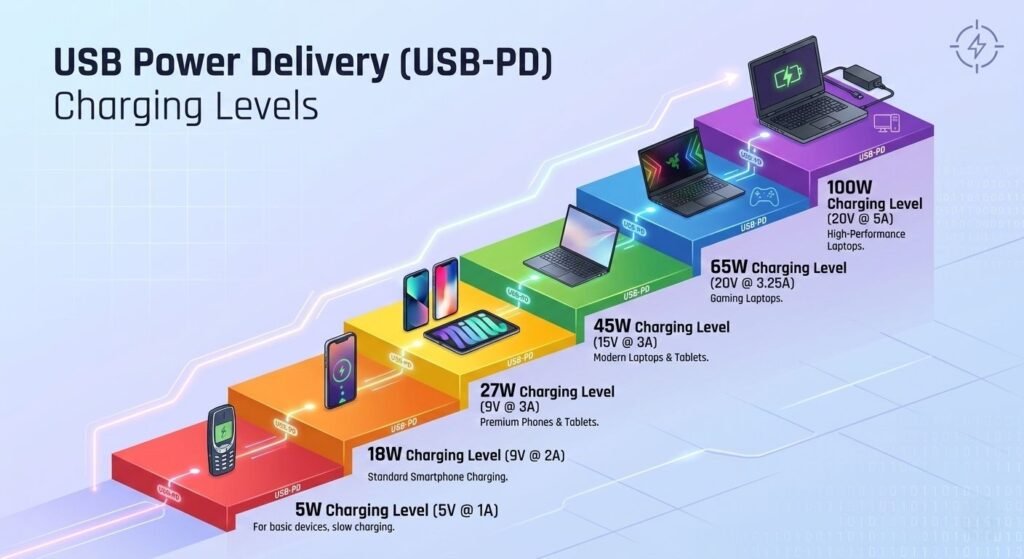
USB Power Delivery (USB-PD) is a charging protocol that enables up to 100W power transfer through USB-C cables — enough to charge laptops, not just phones.
Standard USB Charging
USB 2.0: 2.5W (5V @ 0.5A) — takes 6-8 hours to charge a smartphone
USB 3.0: 4.5W (5V @ 0.9A) — marginally faster
USB Battery Charging (BC 1.2): 7.5W (5V @ 1.5A) — standard for dedicated charging ports
These power levels are adequate for small devices but insufficient for tablets and laptops.
USB Power Delivery Specification
Power range: 5W to 100W in discrete steps
Voltage: 5V, 9V, 12V, 15V, or 20V negotiated between charger and device
Current: Up to 5A maximum
Negotiation: Device and charger communicate to determine optimal voltage/current. Device requests power, charger agrees or offers alternative. This prevents damage from mismatched power levels.
Power profiles:
- 5V @ 2A = 10W (smartphones slow charge)
- 9V @ 3A = 27W (smartphones fast charge, tablets)
- 15V @ 3A = 45W (laptops, premium tablets)
- 20V @ 5A = 100W (gaming laptops, desktop replacement)
Modern USB-C fast chargers using GaN technology can deliver 65-100W while remaining compact due to improved efficiency.
USB-PD Requirements
USB-C connector: USB-PD requires USB-C. Cannot work through USB-A due to insufficient pins for voltage negotiation.
Certified cable: Cable must support USB-PD and the power level being delivered. Cheap cables may lack proper wiring or current handling capacity.
Compatible charger and device: Both must support USB-PD protocol. Device won’t fast charge if charger doesn’t support PD, even if connected via USB-C.
Proprietary Fast Charging
Some manufacturers implement proprietary fast charging protocols alongside or instead of USB-PD:
Qualcomm Quick Charge: 18-45W using voltage adjustment, works through USB-A and USB-C
OnePlus Warp Charge / VOOC: 30-65W using high current at 5V
Samsung Adaptive Fast Charging: 15-25W
Apple Fast Charging: Uses USB-PD but limited to specific power profiles
These proprietary protocols require manufacturer-specific chargers. USB-PD is the universal standard that works across brands.
Thunderbolt: Intel’s Premium Protocol
Thunderbolt is Intel’s high-performance data protocol that uses the USB-C physical connector but adds capabilities beyond standard USB — PCIe tunneling, daisy-chaining, and guaranteed performance levels.
Thunderbolt 3 (40 Gbps)
Data bandwidth: 40 Gbps bidirectional (simultaneous upload/download)
Video support: Dual 4K @ 60Hz or single 5K display via DisplayPort 1.4
PCIe support: 4 lanes PCIe 3.0 for external GPUs, high-speed RAID arrays, professional audio interfaces
Power delivery: 100W USB-PD charging in either direction
Connector: Uses USB-C physical connector exclusively. Every Thunderbolt 3 port is physically USB-C, but not every USB-C port supports Thunderbolt.
Certification: Requires Intel Thunderbolt controller chip. More expensive to implement than standard USB.
Thunderbolt 4 (40 Gbps)
Data bandwidth: 40 Gbps (same as TB3) but with stricter minimum requirements
Video support: Dual 4K @ 60Hz mandatory (TB3 allowed single 4K)
PCIe support: 32 Gbps minimum PCIe bandwidth (TB3 allowed 16 Gbps)
Port requirements: Supports up to four Thunderbolt ports per device, wake from sleep, DMA protection
Backwards compatible: Works with Thunderbolt 3, USB4, USB 3.x, USB 2.0 devices
Why upgrade from TB3: TB4 establishes minimum standards. All TB4 ports meet the same baseline, eliminating capability confusion that plagued TB3.
Thunderbolt vs USB4
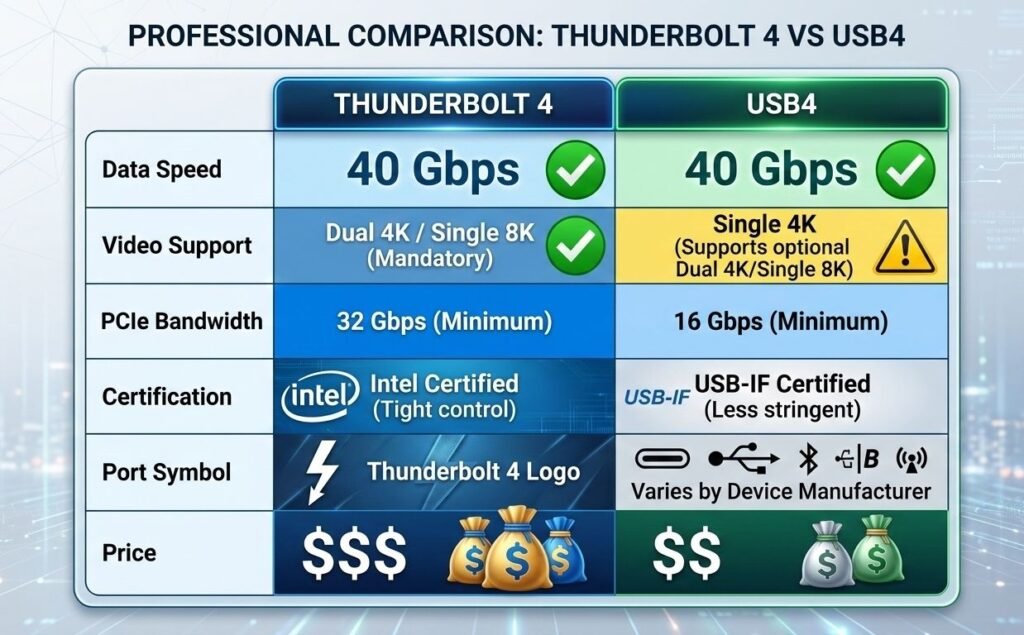
Thunderbolt 4 requirements are stricter than USB4:
- TB4 mandates dual 4K display support; USB4 allows single display
- TB4 requires 32 Gbps PCIe; USB4 allows 16 Gbps
- TB4 includes Intel VT-d DMA protection; USB4 doesn’t mandate this
- TB4 certification ensures interoperability; USB4 allows more variation
Practical difference: Thunderbolt 4 guarantees specific capabilities. USB4 allows manufacturers flexibility that creates compatibility uncertainty.
Thunderbolt Identification
Port marking: Thunderbolt ports are marked with a lightning bolt symbol (⚡). This distinguishes them from standard USB-C ports.
Cable marking: Thunderbolt-certified cables include lightning bolt symbol and specification (Thunderbolt 3 or 4).
No marking = no Thunderbolt: If a USB-C port lacks the lightning bolt symbol, it does not support Thunderbolt regardless of other specifications.
How to Identify What Your Port Supports
Visual identification of port capabilities is inconsistent and often impossible without documentation. These methods help determine what your ports actually support.
Check Device Specifications
Most reliable method: Consult manufacturer specifications or user manual. Search “[device model] USB specifications” to find official documentation.
What to look for:
- USB generation (USB 3.2, USB4, Thunderbolt 3/4)
- Power delivery wattage (5W, 18W, 65W, 100W)
- DisplayPort Alternate Mode support
- Transfer speed in Gbps
Visual Port Indicators
USB-A color coding:
- Black/White = USB 2.0 (usually)
- Blue = USB 3.0+ (usually)
- Teal = USB 3.1 Gen 2 (sometimes)
- Red = charging port (sometimes)
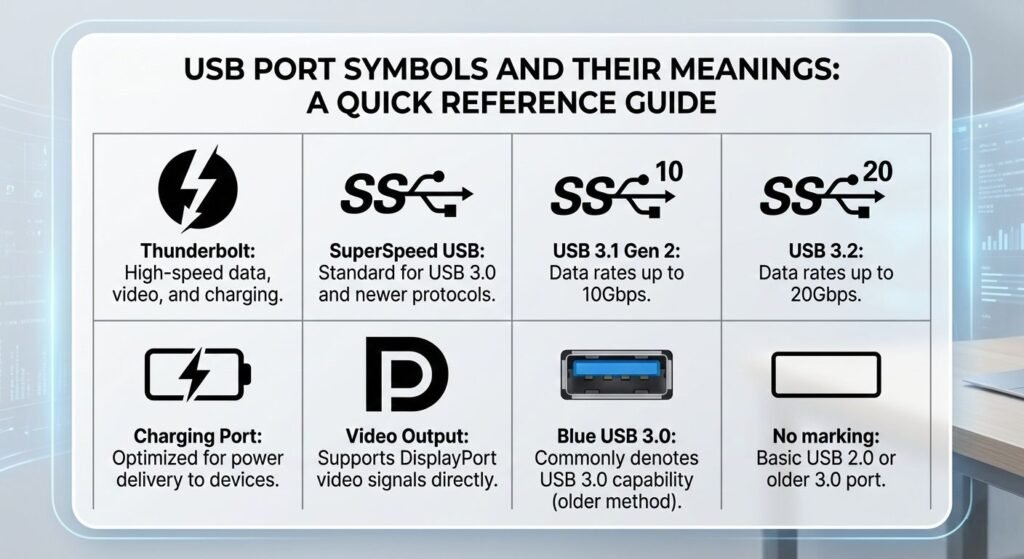
USB-C symbols:
- ⚡ Lightning bolt = Thunderbolt 3 or 4
- SS (SuperSpeed) = USB 3.0+
- SS10 = USB 3.1 Gen 2 (10 Gbps)
- SS20 = USB 3.2 (20 Gbps)
- Battery icon = charging port
- DisplayPort logo = DisplayPort Alternate Mode
Lack of symbols: Many USB-C ports have no markings. This often indicates USB 2.0 (480 Mbps) or basic USB 3.0 (5 Gbps) without advanced features.
Software Detection (Windows/Mac)
Windows: Device Manager → USB Controllers lists USB host controllers and their versions (USB 3.0, 3.1, etc.)
Mac: System Information → USB shows connected devices and bus speed
Limitations: Software shows host controller capability but not individual port features. A computer with USB 3.1 controller may have some ports running at USB 2.0 speeds.
Testing With Known Hardware
Connect a device with known requirements:
- USB 3.0 flash drive shows 300+ MB/s = USB 3.0+ port
- Same drive shows 30-40 MB/s = USB 2.0 port
- USB-PD charger negotiates 18W+ = USB-PD supported
- Thunderbolt drive recognized = Thunderbolt support
Why Cable Quality Matters
USB cables appear identical externally but vary dramatically in internal construction and capability. Using incorrect cables creates frustrating problems that users blame on devices rather than cables.
USB Cable Specifications
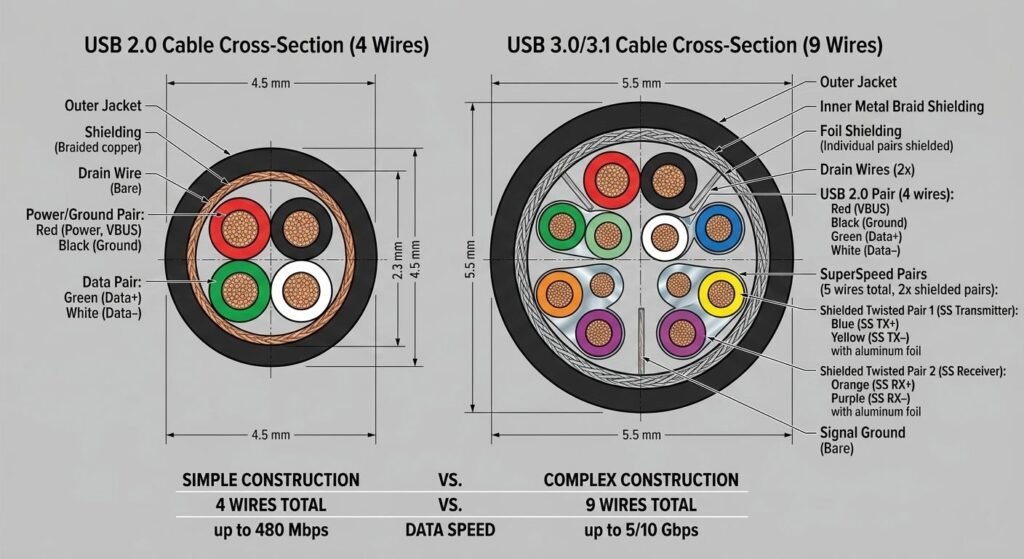
USB 2.0 cable: 4 wires (power, ground, data+, data-). Maximum 480 Mbps. Cannot carry USB 3.0+ speeds even if connected to USB 3.0 ports.
USB 3.0/3.1 cable: 9+ wires adding SuperSpeed data lines. Required for 5 Gbps+ speeds.
USB-C to USB-C cable (basic): May only support USB 2.0 (480 Mbps) despite USB-C connectors on both ends. Always check cable specification, not just connector type.
USB-C to USB-C cable (full-featured): Supports USB 3.2 (10-20 Gbps), USB-PD up to 100W, DisplayPort Alternate Mode. Marked with speed rating (10 Gbps, 20 Gbps, 40 Gbps).
Thunderbolt 3/4 cable: Active cable with integrated chips. Required for 40 Gbps data and full Thunderbolt feature set. Expensive ($30-50) but necessary for Thunderbolt devices.
Cable Length Limitations
USB 2.0: 5 meters (16 feet) maximum without active cable
USB 3.0: 2-3 meters (6-10 feet) maximum for full speed; longer cables drop to USB 2.0 speeds
USB 3.1/3.2: 1 meter (3 feet) maximum for full 10-20 Gbps; longer passive cables reduce speed
Thunderbolt 3 (passive): 0.5 meters (20 inches) maximum for 40 Gbps
Thunderbolt 3 (active): 2 meters (6.6 feet) maximum for 40 Gbps
Longer cables require active amplification (integrated chips) which increases cost significantly.
Power Delivery Cable Requirements
Standard USB-C cable: 3A maximum (60W @ 20V)
USB-C cable marked “5A”: 5A maximum (100W @ 20V) — required for 65W+ laptop charging
Missing power rating: Avoid cables without clear amperage marking for charging applications. Insufficient wire gauge causes voltage drop and slow charging.
How to Identify Cable Capability
Cable marking: Quality cables print specifications directly on the cable jacket: “USB 3.1 Gen 2 10 Gbps 5A 100W”
Packaging: Reputable manufacturers specify all capabilities on packaging. Generic cables often omit specifications.
Certification logos: USB-IF certification logo (if present) indicates tested compliance. Not all quality cables carry logo (voluntary program) but presence indicates legitimate certification.
Price correlation: $3-5 cables are USB 2.0 or basic USB 3.0. $8-15 cables are full-featured USB-C. $25-50 cables are Thunderbolt or long active cables. Price is not guarantee but very cheap cables cannot possibly meet premium specifications.
Common USB Confusion Explained
“Why doesn’t my USB-C cable charge my laptop?”
Answer: Your cable likely doesn’t support USB Power Delivery or is rated below your laptop’s power requirement. Laptop requires 65W, cable only supports 3A = 60W maximum. Device negotiates lower power or doesn’t charge at all.
Solution: Use cable marked “5A” or “100W” and ensure charger supports USB-PD at required wattage.
“Why does my USB-C drive transfer slowly?”
Answer: Either the port, cable, or drive (or all three) only support USB 2.0 (480 Mbps) despite USB-C connectors. USB-C is just the shape — it doesn’t guarantee speed.
Solution: Verify all components (port, cable, drive) support USB 3.1 or higher. One USB 2.0 component limits the entire chain.
“Why won’t my USB-C monitor work?”
Answer: Your USB-C port likely doesn’t support DisplayPort Alternate Mode — the video output protocol required for USB-C displays. Not all USB-C ports carry video.
Solution: Check device specifications for “DisplayPort Alt Mode” or “DP Alt Mode” support. Only ports with this feature can output video.
“Why won’t my Thunderbolt device work?”
Answer: Your port is USB-C but not Thunderbolt. Thunderbolt requires specific Intel controller chip — it’s not automatic with USB-C.
Solution: Look for lightning bolt (⚡) symbol on port. If absent, port doesn’t support Thunderbolt. Use Thunderbolt-specific port or adapter.
“Why do identical-looking cables perform differently?”
Answer: Internal cable construction varies. External appearance reveals nothing about wire gauge, shielding, or protocol support.
Solution: Buy cables from reputable manufacturers with clear specifications. Avoid generic unbranded cables for critical applications.
USB Compatibility: Backward and Forward
USB maintains extensive backwards and forwards compatibility — newer devices work with older cables/ports and vice versa — but performance drops to lowest common capability.
Backwards Compatibility
USB 3.x device + USB 2.0 port: Works at USB 2.0 speeds (480 Mbps). Device won’t damage port, but speed is limited.
USB-C device + USB-A port (with adapter): Works if protocols match. USB 3.0 device with USB-A to USB-C adapter works at USB 3.0 speeds if both port and adapter support it.
Thunderbolt 4 device + USB 3.x port: Works at USB 3.x speeds but loses Thunderbolt-specific features (PCIe, daisy-chaining, guaranteed bandwidth).
USB4 device + USB 3.x port: Works at USB 3.x speeds. USB4 is built on Thunderbolt 3, which is built on USB 3.1 — full backwards compatibility maintained.
Forward Compatibility
USB 2.0 device + USB 3.x port: Works perfectly. Device operates at USB 2.0 speeds. Port provides full power delivery for device.
USB 3.0 flash drive + Thunderbolt port: Works at USB 3.0 speeds. Thunderbolt port includes USB compatibility layer.
Compatibility Limitations
USB-A to USB-C cable: Limits capabilities to lowest common denominator. Even if USB-C side connects to Thunderbolt 4 port, the USB-A connector limits maximum speed to USB 3.1 Gen 2 (10 Gbps) at best, often USB 3.0 (5 Gbps).
Power delivery: USB-PD requires USB-C on both ends. Cannot deliver 100W through USB-A regardless of cable or device capability.
Video output: DisplayPort Alternate Mode requires USB-C. Cannot carry video through USB-A connector.
Frequently Asked Questions
Can I use any USB-C cable for everything?
No. USB-C cables vary in supported data speed (USB 2.0 to USB4/Thunderbolt), power delivery (3A vs 5A), and video support. A USB-C cable that charges your phone may not support fast data transfer or display output. Always verify cable specifications match your use case.
Is Thunderbolt better than USB-C?
Thunderbolt is not an alternative to USB-C — it’s a protocol that uses USB-C physical connector. The question is “Thunderbolt vs USB4/USB 3.x protocol.” Thunderbolt offers guaranteed performance, PCIe support for external GPUs, and stricter certification. It’s “better” but more expensive and unnecessary unless you need specific Thunderbolt features.
Why do some USB-C ports charge devices but not transfer data?
Some devices implement charging-only USB-C ports to reduce cost. They include USB-PD power negotiation circuitry but omit USB data controller. Common on power banks, wall chargers, and some tablets. Always check specifications — “USB-C” alone doesn’t guarantee data capability.
Do I need Thunderbolt for high-speed external storage?
No. USB 3.2 (20 Gbps) or USB4 (40 Gbps) provide equivalent speeds to Thunderbolt for storage. Thunderbolt’s advantages (PCIe support, guaranteed bandwidth) matter for external GPUs and professional video capture, not for SSDs or hard drives. USB 3.1 Gen 2 (10 Gbps) is sufficient for most SSDs.
Can I damage my device with the wrong cable?
Modern devices include protection against incorrect voltage/current from cables. However, extremely poor quality cables with insufficient wire gauge can overheat, melt, or start fires when carrying high current. Stick to cables from reputable manufacturers with proper safety certifications (UL, CE marks) for charging applications.
Why does my phone charge slowly on some USB-C chargers?
Your phone and charger must both support the same fast charging protocol. If your phone uses proprietary fast charging and charger only supports standard USB-PD (or vice versa), charging defaults to slow 5W-10W speeds. Check that charger explicitly supports your device’s fast charging standard.
Key Takeaways
USB-C is a physical connector that can carry multiple different protocols — USB 2.0 (480 Mbps), USB 3.2 (20 Gbps), USB4 (40 Gbps), or Thunderbolt 3/4 (40 Gbps with additional features). The connector shape does not determine capability. Two identical-looking USB-C ports can have completely different specifications, creating the majority of USB confusion.
Thunderbolt requires specific Intel controller chips and cannot be assumed from USB-C connector presence alone. Thunderbolt ports are marked with lightning bolt (⚡) symbol. Without this marking, the port is standard USB regardless of physical appearance. Thunderbolt provides PCIe tunneling for external GPUs and guaranteed bandwidth but costs significantly more to implement than USB4, which provides similar data speeds without specialized features.
Cable quality determines actual performance regardless of port capability. A USB 2.0 cable connecting two USB 3.2 ports will operate at USB 2.0 speeds (480 Mbps). A 3A cable connecting a 100W laptop charger will charge slowly or fail to charge. Always verify cable specifications match the weakest component in your connection chain — upgrading the port or device without upgrading the cable provides no benefit.
USB Power Delivery enables up to 100W charging through USB-C but requires compatible devices, cables rated for 5A, and chargers supporting USB-PD protocol. Proprietary fast charging protocols (Quick Charge, VOOC, Adaptive Fast Charging) require manufacturer-specific chargers. Standard USB-PD provides universal compatibility across brands but may charge slower than proprietary solutions with manufacturer-provided chargers.
Related guides: