
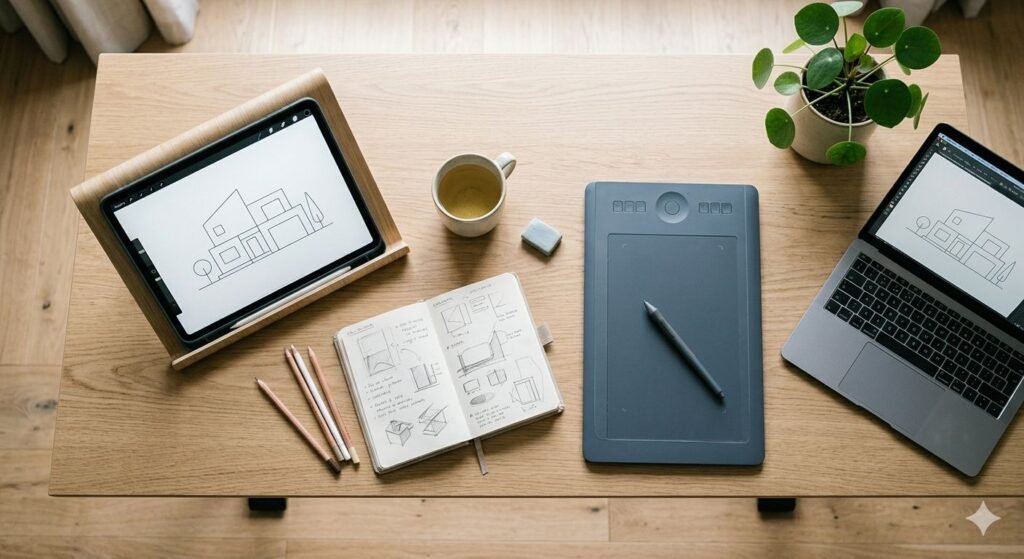
Every beginner artist eventually hits the same wall. You’ve been sketching on paper, watching tutorials, and at some point the question becomes unavoidable: should I get a drawing tablet? And if so, which kind?
The market splits into two fundamentally different approaches. On one side is the iPad — a general-purpose tablet that doubles as a capable drawing device when paired with the Apple Pencil. On the other is the dedicated drawing tablet, a category that itself divides into screen-less pen tablets (where you draw on a surface and look at your monitor) and pen displays (where you draw directly on a screen). Each approach has genuine strengths, real limitations, and a very different type of person it suits best.
This guide is written specifically for beginners — people who are either brand new to digital art or transitioning from traditional media and haven’t yet committed to a setup. We’ll cover what actually matters when you’re starting out, work through the iPad versus dedicated tablet debate honestly, and recommend the best options at each price point so you can make a decision with confidence.
Understanding the Categories: What You’re Actually Choosing Between
Before comparing specific products, it helps to understand what the three main categories actually are, because the terminology gets confused constantly in beginner discussions.
A pen tablet — sometimes called a graphics tablet — is a flat pad with no screen. You draw on the surface with a stylus while looking at your monitor. Your hand moves on the tablet, and the cursor moves on screen. This is the category that Wacom has dominated for decades with products like the Intuos line, and it’s where Huion and XP-Pen have built competitive budget alternatives.
A pen display is a screen you draw directly on — a monitor with built-in touch sensitivity and stylus support. You see your artwork directly under the pen tip. The Wacom Cintiq is the professional benchmark; Huion Kamvas and XP-Pen Artist series are the more affordable alternatives. Pen displays are more expensive, more intuitive for beginners, and considerably heavier and less portable than pen tablets.
An iPad used as a drawing tablet is a different thing entirely. It’s a full touchscreen tablet computer running iPadOS, paired with the Apple Pencil. Apps like Procreate, Adobe Fresco, and Affinity Designer run natively on the device. There’s no computer required. You draw directly on the screen, which shows the artwork immediately. It’s the most portable option and the most beginner-friendly in terms of setup simplicity, but it’s also a different ecosystem from desktop creative software.
Understanding which category you’re looking at matters because the experience of using each is genuinely different — not better or worse across the board, but suited to different workflows, environments, and goals.
iPad as a Drawing Tablet: The Real Picture
The iPad’s rise as a legitimate creative tool is one of the more significant developments in digital art over the past decade. Procreate in particular — a native iPad app — has become one of the most popular digital illustration tools in the world, used by professionals and beginners alike. For many artists, especially those working in illustration, character design, and concept art, an iPad Pro with an Apple Pencil is their primary tool.
The case for the iPad as a beginner drawing device is strong. Setup is immediate — there’s no driver installation, no computer required, no compatibility troubleshooting. The drawing experience on screen is intuitive for anyone transitioning from traditional media because you’re drawing directly on the surface you’re looking at. Procreate is genuinely excellent software for the price, and the iPad’s display quality is outstanding across the lineup. The portability is unmatched — you can draw on a train, in a café, in bed, in ways that no dedicated tablet setup allows.
The honest limitations are equally real. iPadOS is not macOS or Windows — the creative software ecosystem is different, and some professional tools either don’t exist on iPad or exist in limited versions. Adobe Photoshop for iPad is substantially less capable than the desktop version. Clip Studio Paint is available and functional, but the iPad version has historically lagged behind the desktop release. If your goal is to work in desktop creative software professionally, an iPad is a companion device rather than the primary tool.
The Apple Pencil experience is excellent but not without nuance. The Apple Pencil 2 (now replaced by the Apple Pencil Pro for newer iPad models) has virtually no perceptible latency in Procreate, has tilt sensitivity, and feels genuinely good to draw with. However, the tip feel on glass — even with a matte screen protector — is different from drawing on the textured surface of a dedicated pen tablet. Some artists adapt immediately; others never fully get used to it.
Cost is the other consideration. An iPad capable of paired Apple Pencil use — at minimum an iPad 10th generation or iPad mini — starts at a price that already competes with mid-range dedicated tablets. An iPad Pro with an Apple Pencil Pro is a significant investment before you’ve established that digital art is something you’ll commit to.
Dedicated Drawing Tablets: Pen Tablets vs Pen Displays
Pen tablets (no screen)
The screenless pen tablet is the traditional entry point for digital art, and for good reason: it’s affordable, reliable, and the technology is extremely mature. A basic Wacom Intuos or Huion Inspiroy costs a fraction of an iPad and works with any computer running Windows or macOS. Driver installation is straightforward, and compatibility with Photoshop, Clip Studio Paint, Krita, Procreate for Mac, and essentially every other creative application is excellent.
The learning curve is the honest challenge. Drawing on a surface while looking at a monitor requires hand-eye coordination adjustment that takes most people one to four weeks of regular use to internalize. It feels unnatural at first — your hand moves here, the cursor moves there — and beginners sometimes give up during this adjustment period before it becomes second nature. Those who push through consistently report that the disconnect becomes invisible with practice, and many professional artists work exclusively on pen tablets for decades.
The ergonomic advantage of pen tablets is also worth noting. Because you’re not hunching over a screen, your posture while drawing is better than with a pen display or iPad held flat. For long drawing sessions, this matters.
Pen displays (screen included)
Pen displays address the hand-eye coordination challenge by letting you draw directly on the screen, making the transition from traditional media more immediate. Beginners generally find pen displays more intuitive from the first session. The experience is closer to drawing on paper, in terms of the relationship between hand and image.
The trade-offs are cost, desk space, and parallax. Entry-level pen displays from Huion and XP-Pen start at prices significantly above entry-level pen tablets, though they’ve come down considerably. They require desk space and a computer to connect to. And all pen displays have some degree of parallax — the visual offset between the pen tip and where the mark appears, caused by the glass layer above the display. High-quality pen displays minimize this with laminated screens, but it’s never entirely zero the way it is on a pen tablet (where there’s no expectation of mark appearing under the tip at all) or an iPad (which has very thin glass and excellent lamination).
Which Is Right for You: An Honest Framework
Rather than declaring one category universally better for beginners, it’s more useful to think about which matches your actual situation.
Choose an iPad if you want a self-contained setup that requires no computer, want maximum portability and the ability to draw anywhere, are primarily interested in illustration and don’t plan to work in desktop software professionally in the near term, and are comfortable spending more upfront for a device that also functions as your tablet computer for other tasks.
Choose a pen tablet if you already own a capable Windows or macOS computer and want to add drawing capability at the lowest cost, are planning to work in desktop creative software like Photoshop or Clip Studio Paint, don’t need portability as a primary feature, and are willing to invest a few weeks in the hand-eye coordination adjustment.
Choose a pen display if you find the hand-eye coordination of a pen tablet genuinely off-putting rather than just temporarily unfamiliar, work in a fixed desk setup, have a larger budget for your starting setup, and want the closest experience to drawing on paper while still working in desktop software.
For pure beginners with no existing computer or who are unsure about commitment level, an entry-level pen tablet plus a free application like Krita is the lowest-risk starting point. For beginners who are serious about committing to digital art and want the most enjoyable experience from day one, an iPad with Procreate is hard to argue with.
The Best Drawing Tablets for Beginners in 2026
iPad (10th Generation)
Best iPad for Beginners on a Budget
| Specification | Detail |
|---|---|
| Display | 10.9-inch Liquid Retina, 2360 × 1640, 264 PPI |
| Apple Pencil compatibility | Apple Pencil USB-C (1st gen) |
| Chip | A14 Bionic |
| Storage | 64GB / 256GB |
| Connectivity | USB-C, Wi-Fi 6 |
| Battery life | Up to 10 hours |
| Weight | 477g |
| Recommended software | Procreate ($12.99 one-time), Adobe Fresco (free tier) |
The 10th generation iPad is the sensible entry point for beginners who want the iPad drawing experience without iPad Pro pricing. It runs Procreate flawlessly, handles every illustration workflow a beginner will encounter, and the 10.9-inch display is a comfortable working size for drawing — not cramped, not oversized.
The honest limitation at this tier is Apple Pencil compatibility. The 10th generation iPad uses the USB-C Apple Pencil — a first-generation pencil redesigned with a USB-C tip for charging rather than the Lightning adapter of the original. It lacks the magnetic attachment and wireless charging of the Apple Pencil 2 or Pencil Pro. It works well, but the charging setup is less elegant. The pencil needs to be charged separately rather than snapping magnetically to the side of the iPad.
Procreate on the 10th generation iPad performs well. The A14 Bionic chip handles large canvases with many layers without significant slowdown in typical beginner workflows. For artists planning to work on extremely large, complex canvases with hundreds of layers, the iPad Pro’s M-series chip offers meaningful headroom, but beginners won’t encounter those limitations.
The 10th generation iPad is also the only current iPad model with a Touch ID button rather than Face ID, which some users prefer and others find irrelevant.
Pros:
- Most affordable entry point to iPad drawing with Apple Pencil support
- Runs Procreate flawlessly for all beginner and intermediate workflows
- 10.9-inch display is a practical, comfortable drawing size
- General-purpose device — useful beyond drawing for browsing, streaming, notes
- Solid 10-hour battery life for portable drawing sessions
Cons:
- USB-C Apple Pencil lacks magnetic attachment and wireless charging
- A14 chip shows its age on very large, complex canvases
- No ProMotion display — 60Hz refresh rate vs 120Hz on iPad Pro and iPad Air
- Entry storage of 64GB fills quickly with Procreate files and app data
Who Should Buy This: Beginners wanting the iPad drawing experience at the lowest iPad price. Anyone who wants a versatile tablet that does more than drawing. Users who will primarily use Procreate for illustration and don’t need professional desktop software.
Who Should Skip This: Serious beginners who plan to invest heavily in the iPad ecosystem long-term — the iPad Air or Pro is a better long-term investment. Anyone who wants Apple Pencil Pro features including tilt-sensitive barrel squeeze. Users who need to work in demanding desktop software.
iPad Air (M2)
Best iPad for Committed Beginner to Intermediate Artists
| Specification | Detail |
|---|---|
| Display | 11-inch or 13-inch Liquid Retina, 264 PPI |
| Apple Pencil compatibility | Apple Pencil Pro |
| Chip | M2 |
| Storage | 128GB / 256GB / 512GB / 1TB |
| Connectivity | USB-C (USB 3), Wi-Fi 6E |
| Battery life | Up to 10 hours |
| Weight | 462g (11-inch) |
| Recommended software | Procreate, Adobe Fresco, Affinity Designer 2 |
The iPad Air M2 is the sweet spot of the iPad lineup for artists — it supports the Apple Pencil Pro, runs on the M2 chip with substantial headroom for complex creative work, and is available in both 11-inch and 13-inch display sizes. For a beginner who is serious about digital art and wants a device that will grow with them for years, the Air makes more sense than either the entry iPad (limited by Apple Pencil compatibility) or the Pro (diminishing returns at a higher price).
The Apple Pencil Pro compatibility is the headline practical upgrade from the base iPad. The Pencil Pro adds barrel roll detection — the ability to register the rotation of the pencil around its axis — which enables features like rotating brush angle naturally as you would a physical brush or calligraphy pen. It also adds a squeeze gesture for switching tools. These features matter more as skills develop than they do in the first weeks, making the Air a sensible long-term investment.
The M2 chip is more than capable of handling any creative workload a beginner or intermediate artist will generate. Large canvases, complex brush engines, video export from Procreate — none of these challenge the Air’s performance envelope in meaningful ways. The 13-inch option in particular offers a working area that competes with many entry-level pen displays in terms of sheer canvas size.
Pros:
- Apple Pencil Pro support — the best Apple Pencil experience available
- M2 chip handles demanding creative workflows with significant headroom
- Available in 11-inch and 13-inch — choice of working size
- 128GB base storage is more practical than the base iPad’s 64GB
- USB 3 speeds for faster external storage and display output
Cons:
- Significantly more expensive than the base iPad
- No ProMotion (120Hz) display — that remains exclusive to iPad Pro
- Still tied to iPadOS ecosystem limitations for professional desktop software
Who Should Buy This: Beginners who are committed to digital art and want a device that will remain capable for years. Artists planning to work across illustration, design, and animation in the Apple ecosystem. Anyone who wants the Apple Pencil Pro experience without iPad Pro pricing.
Who Should Skip This: True beginners unsure about committing to digital art — the base iPad is a lower-risk starting point. Professional artists who need the iPad Pro’s additional display quality, ProMotion, or connectivity options.
Wacom Intuos Small
Best Entry-Level Pen Tablet
| Specification | Detail |
|---|---|
| Type | Pen tablet (no screen) |
| Active area | 152 × 95mm |
| Pen | Wacom 4K Pen (4096 pressure levels) |
| Tilt sensitivity | Yes (±60°) |
| Connectivity | USB / Bluetooth (wireless version) |
| Compatibility | Windows, macOS |
| Express keys | 4 customizable |
| Included software | Clip Studio Paint Pro (6-month trial), Corel Painter Essentials |
| Warranty | 2 years |
The Wacom Intuos Small is the most recommended entry-level pen tablet for beginners, and that reputation is earned. Wacom’s build quality, driver reliability, and pen performance set the standard that competitors measure themselves against. The 4096 pressure levels of the 4K Pen are more than sufficient for any beginner workflow, tilt sensitivity is included, and the pen requires no battery — it’s EMR (electromagnetic resonance) powered by the tablet itself.
The active area of 152 × 95mm is the smallest in the Wacom Intuos lineup and the primary trade-off at this price point. For beginners, this is generally fine — the area is adequate for illustration, photo editing, and most digital art workflows. Artists with large physical drawing movements may find it restricting over time, and upgrading to the Medium size is worth considering if you have the budget.
Wacom includes substantial software bundles with Intuos purchases — a six-month Clip Studio Paint Pro trial and Corel Painter Essentials license are included. Clip Studio Paint in particular is one of the best applications for comic and manga illustration, and the trial gives enough time to assess whether you want to commit to a subscription or perpetual license.
The Bluetooth wireless version adds a small premium but eliminates the USB cable — a quality-of-life improvement worth having for a desk setup where cable management matters.
Pros:
- Best-in-class pen tablet driver reliability and build quality
- Battery-free EMR pen with 4096 pressure levels and tilt sensitivity
- Substantial software bundle included — Clip Studio Paint trial has real value
- Two-year warranty is industry-leading at this price tier
- Available with Bluetooth for cable-free operation
Cons:
- Small active area — artists with expansive drawing movements may feel constrained
- Requires hand-eye coordination adjustment period
- No screen — relies entirely on your existing monitor quality
- Fewer express keys than larger models in the Intuos lineup
Who Should Buy This: Beginners who already own a capable computer and want the lowest-cost entry into digital drawing. Artists planning to work in desktop software like Photoshop, Clip Studio Paint, or Krita. Anyone who values Wacom’s driver reliability and build reputation over budget alternatives.
Who Should Skip This: Beginners who genuinely struggle with hand-eye coordination and find the screen disconnect discouraging after a fair trial period. Artists who need a portable, standalone solution. Those who primarily draw with large arm movements rather than wrist movements.
Huion Inspiroy 2 Medium
Best Budget Pen Tablet: Maximum Active Area for the Price
| Specification | Detail |
|---|---|
| Type | Pen tablet (no screen) |
| Active area | 221 × 138mm |
| Pen | PW517 (8192 pressure levels) |
| Tilt sensitivity | Yes (±60°) |
| Connectivity | USB / Wireless (2.4GHz dongle) |
| Compatibility | Windows, macOS, Linux, Android |
| Express keys | 8 customizable + scroll wheel |
| Battery-free pen | Yes |
| Warranty | 1 year |
The Huion Inspiroy 2 Medium offers meaningfully more active area than the Wacom Intuos Small at a comparable or lower price, 8192 pressure levels rather than 4096, eight express keys and a scroll wheel rather than four keys, and Android compatibility for drawing on a phone or tablet. On a pure specification comparison, the Inspiroy 2 Medium beats the Wacom Intuos Small in almost every measurable category.
The honest caveat is driver quality. Huion’s drivers have improved substantially in recent years and are now stable and reliable for most users on most systems. However, occasional driver conflicts, update issues, and edge-case compatibility problems do occur more frequently than with Wacom’s more mature driver ecosystem. For most beginners using mainstream creative software on Windows or macOS, this will never be an issue. For users on less common system configurations, it’s worth researching current driver compatibility specifically.
The larger active area is genuinely useful for artists who draw with more physical movement — the 221 × 138mm surface accommodates larger gesture drawing and feels less constraining than small-format tablets for full-arm illustration techniques.
The scroll wheel is a practical convenience for zoom and brush size adjustment that Wacom’s equivalent price point doesn’t include.
Pros:
- Larger active area than Wacom Intuos Small at comparable or lower price
- 8192 pressure levels — double the Wacom Intuos entry-level pen
- Eight express keys plus scroll wheel — more shortcut flexibility
- Android compatibility for drawing on mobile devices
- Wireless 2.4GHz dongle included — no Bluetooth premium required
Cons:
- Driver ecosystem less mature than Wacom — occasional compatibility issues
- One-year warranty versus Wacom’s two years
- Build quality and materials feel slightly less premium than Wacom equivalents
- Less established software bundle than Wacom Intuos
Who Should Buy This: Budget-conscious beginners who want more active area and more express keys than the Wacom Intuos Small provides. Linux users — Huion’s Linux support is better than Wacom’s at this tier. Artists who draw with larger physical movements and would feel constrained by a small active area.
Who Should Skip This: Users on unusual system configurations where driver stability is a priority. Those who value Wacom’s build quality, warranty, and driver reliability over raw specifications. Beginners who are unsure about committing and want the lowest possible entry cost — the Wacom Intuos Small is cheaper at the small size.
Huion Kamvas 13 Gen 3
Best Entry-Level Pen Display
| Specification | Detail |
|---|---|
| Type | Pen display (screen included) |
| Display | 13.3-inch IPS, 1920 × 1080, 166 PPI |
| Pen | PW600 (8192 pressure levels) |
| Tilt sensitivity | Yes (±60°) |
| Color gamut | 145% sRGB |
| Laminated display | Yes (fully laminated) |
| Connectivity | USB-C (single cable to compatible hosts) |
| Compatibility | Windows, macOS, Android (select devices) |
| Express keys | 8 on-device + dial |
| Warranty | 1 year |
The Huion Kamvas 13 Gen 3 is the most recommended entry point for beginners who want to draw directly on a screen without committing to a professional pen display budget. The 13.3-inch display is a practical working size — large enough to be comfortable, small enough to fit on a typical desk alongside a computer without dominating the workspace.
The fully laminated display is the most important specification at this price tier. Lamination bonds the glass layer directly to the display panel, dramatically reducing the parallax gap between pen tip and mark. Earlier generations of budget pen displays had visible parallax that made precise linework difficult; the Kamvas 13 Gen 3’s laminated screen largely resolves this. The drawing experience is noticeably more comfortable than previous iterations.
Single USB-C cable connectivity — compatible with computers that support DisplayPort Alt Mode over USB-C, including most modern MacBooks and many Windows laptops — simplifies the desk setup considerably. No power brick, no separate HDMI cable. One cable connects power, data, and display signal.
The 1920 × 1080 resolution at 13.3 inches gives 166 PPI — adequate for most illustration work but lower than the 264 PPI of an iPad or the pixel density of professional pen displays. Fine text and very detailed linework will look slightly softer than on higher-resolution screens, which is worth knowing but rarely a significant issue in practice for illustration workflows.
Pros:
- Fully laminated display dramatically reduces parallax — comfortable for precise linework
- Intuitive drawing experience — no hand-eye coordination adjustment required
- Single USB-C cable connection simplifies setup on compatible computers
- 145% sRGB color gamut is wide and vivid for illustration work
- Eight express keys and a dial provide practical shortcut access
Cons:
- 1080p resolution at 13.3 inches is adequate but not sharp compared to iPad or pro displays
- Requires a computer — not a standalone device
- Driver stability caveats apply as with all Huion products
- Takes up significant desk space compared to a pen tablet
- One-year warranty
Who Should Buy This: Beginners who find the hand-eye disconnect of a pen tablet genuinely difficult and want to draw on screen. Artists transitioning from traditional media who want the most paper-like drawing relationship. Users with a fixed desk setup who want a dedicated drawing screen.
Who Should Skip This: Beginners who want portability — this is a desk-only device. Anyone on a tight budget — a pen tablet provides more drawing area per dollar. Users who need high pixel density for detailed work at full zoom.
XP-Pen Artist 12 Gen 2
Best Alternative Pen Display: Sharp Display, Compact Footprint
| Specification | Detail |
|---|---|
| Type | Pen display (screen included) |
| Display | 11.9-inch IPS, 2160 × 1350, 213 PPI |
| Pen | X3 Pro Pencil (16384 pressure levels) |
| Tilt sensitivity | Yes (±60°) |
| Color gamut | 127% sRGB |
| Laminated display | Yes (fully laminated) |
| Connectivity | USB-C or USB-A + HDMI |
| Compatibility | Windows, macOS, Linux, ChromeOS, Android |
| Express keys | 8 physical + dial |
| Warranty | 1 year |
The XP-Pen Artist 12 Gen 2 competes directly with the Huion Kamvas 13 Gen 3 and differentiates itself primarily through higher display resolution and more pressure levels in its pen. The 2160 × 1350 display at 213 PPI is noticeably sharper than the Kamvas 13’s 1080p panel — fine linework, text, and detailed illustration look meaningfully crisper, and this is the specification that distinguishes the Artist 12 Gen 2 most clearly from its competition at this price point.
The X3 Pro Pencil’s 16384 pressure levels are the highest in this roundup. In practical terms, the perceptible difference between 8192 and 16384 pressure levels in daily illustration work is minimal — both provide smooth, responsive pressure curves with fine gradation control. The headline number is impressive but shouldn’t be the primary purchasing decision.
Broad compatibility — Windows, macOS, Linux, ChromeOS, and Android — makes the Artist 12 Gen 2 the most versatile pen display in this roundup for users across different operating systems. Linux support in particular is better maintained than on competing devices.
The display is slightly smaller than the Kamvas 13 at 11.9 inches, which some users will prefer for a more compact desk footprint and others will find slightly cramped for comfortable illustration.
Pros:
- Higher display resolution than Kamvas 13 Gen 3 — noticeably sharper linework
- 16384 pressure levels — highest in this roundup
- Fully laminated display with minimal parallax
- Broadest OS compatibility including Linux and ChromeOS
- Compact footprint — slightly smaller desk requirement than 13-inch alternatives
Cons:
- Slightly smaller working area than Kamvas 13 Gen 3
- 127% sRGB color gamut slightly narrower than Kamvas 13’s 145%
- XP-Pen driver ecosystem slightly less mature than Huion’s in recent years
- One-year warranty
- USB-A + HDMI connection option requires more cable management than single USB-C
Who Should Buy This: Beginners who prioritize display sharpness and want the crispest linework available at this price tier. Linux and ChromeOS users who need reliable OS compatibility. Anyone who wants a slightly more compact desk footprint than a 13-inch display provides.
Who Should Skip This: Users who prioritize color gamut width for illustration with vibrant colors. Those who want single-cable USB-C simplicity — the connection options are more complex than the Kamvas 13. Anyone who values color reproduction above resolution.
Side-by-Side Comparison Table
| Product | Type | Screen | Active Area / Display Size | Pressure Levels | Key Software | Standalone | Best For |
|---|---|---|---|---|---|---|---|
| iPad 10th Gen | iPad | Yes — 10.9″ Retina | 10.9 inch | N/A | Procreate, Fresco | Yes | Budget iPad entry |
| iPad Air M2 | iPad | Yes — 11″ or 13″ Retina | 11 or 13 inch | N/A | Procreate, Fresco, Affinity | Yes | Committed iPad artist |
| Wacom Intuos Small | Pen tablet | No | 152 × 95mm | 4096 | Clip Studio Paint (trial) | No | Best reliability |
| Huion Inspiroy 2 M | Pen tablet | No | 221 × 138mm | 8192 | — | No | Best budget area |
| Huion Kamvas 13 Gen 3 | Pen display | Yes — 13.3″ | 13.3 inch | 8192 | — | No | Best entry display |
| XP-Pen Artist 12 Gen 2 | Pen display | Yes — 11.9″ | 11.9 inch | 16384 | — | No | Sharpest budget display |
What to Look For When Buying
Active area size
For pen tablets, active area is the most important physical specification. Larger areas give more room for arm gestures and feel less cramped for artists who draw with broad movements. The mapping between tablet area and screen area is adjustable in drivers, so a small tablet can be mapped to a small portion of your screen for finer control — but most artists find a medium-sized active area the most comfortable starting point.
Pressure levels
4096 pressure levels was the professional standard for years and remains more than adequate for beginner to professional work. 8192 levels offer marginally finer gradation. 16384 levels are the current top specification in consumer devices. In honest practice, the difference between 4096 and 8192 is subtle, and the difference between 8192 and 16384 is imperceptible to most users in normal drawing conditions. Don’t choose a tablet primarily on pressure level numbers.
Battery-free pen
All tablets in this roundup use battery-free electromagnetic resonance pens, meaning the pen is powered by the tablet itself and never needs charging or a battery replacement. This is now standard across reputable brands and is worth confirming in any device you’re considering — older or very cheap tablets sometimes still use battery-powered styli.
Driver quality and OS compatibility
Driver quality affects daily usability more than almost any other factor. Wacom’s drivers are the most mature and reliable. Huion and XP-Pen have improved substantially but still have occasional compatibility edge cases. If you’re on Linux or ChromeOS, Huion and XP-Pen’s broader OS compatibility is a meaningful advantage. Check current user reports on the specific OS and software combination you’ll be using before purchasing.
Display resolution (pen displays only)
Higher pixel density means sharper lines and more comfortable detailed work. 1080p at 13 inches (approximately 166 PPI) is adequate. 2K at 13 inches (approximately 213 PPI) is noticeably better. 4K at 16 inches and above is the professional standard. For beginners, 1080p is a reasonable starting point but 2K is worth the modest premium where available.
Laminated vs non-laminated displays (pen displays only)
Fully laminated pen displays bond the glass directly to the panel, minimizing parallax — the gap between pen tip and mark. Non-laminated displays have a visible air gap that increases parallax and can make precise linework frustrating. All pen displays in this roundup are fully laminated. At this point in the market, non-laminated displays exist only in the very lowest price tier and should generally be avoided by beginners who are serious about the craft.
Frequently Asked Questions
Do I need an expensive computer to use a drawing tablet? For pen tablets and pen displays, a relatively modest computer is sufficient for most beginner drawing applications. Krita and Clip Studio Paint run well on computers that are five or more years old with 8GB of RAM. Photoshop benefits from more powerful hardware, especially for large canvases. The GPU matters less for 2D illustration than it does for 3D work or video editing. iPad users need no separate computer.
Is Procreate only available on iPad? Procreate is an iPad-exclusive application and is not available on Windows, macOS, or Android. Procreate Dreams (animation) is also iPad-only. There is no official Procreate desktop version. If you want to use Procreate specifically, you need an iPad. Alternatives for desktop users include Clip Studio Paint, Adobe Photoshop, Krita (free), and Affinity Designer.
What software should a complete beginner start with? For iPad users: Procreate. It’s $12.99 as a one-time purchase, has an enormous community of tutorials, and is genuinely excellent for illustration. For desktop pen tablet users: Krita is free, open-source, and surprisingly capable — it’s a legitimate starting point that many artists use long-term. Clip Studio Paint has a free tier and is particularly strong for comic and manga workflows. Adobe products require ongoing subscription costs that aren’t necessary for beginners.
How long does it take to get used to a pen tablet? The hand-eye coordination adjustment for screenless pen tablets takes most people one to four weeks of regular daily use — typically thirty minutes to an hour per day. The first few sessions feel awkward. By the end of the first week, most people are functional. By the end of the second week, most people stop thinking about it consciously. If after four weeks of regular use it still feels unnatural, a pen display or iPad may simply suit your working style better.
Can I use a drawing tablet for things other than art? Pen tablets are useful for precise photo editing and retouching, handwritten note-taking, digital signatures, and any task requiring fine cursor control. iPads are full general-purpose tablets useful for browsing, streaming, notes, productivity, and everything else. Pen displays are more specific to creative work and have limited utility beyond their primary drawing function.
What is the best free software for drawing tablet beginners? Krita is the most capable free drawing application available on Windows, macOS, and Linux, and it has strong community support and tutorials. Autodesk Sketchbook has a free version that is particularly beginner-friendly with a clean interface. Adobe Fresco has a free tier with core brushes and canvas. GIMP is free and capable but has a steeper learning curve and a less intuitive interface for illustration-focused workflows.
Should I get a glove for drawing on a pen display or iPad? A drawing glove — a thin glove covering two or three fingers — reduces friction when resting your hand on a glass screen and prevents palm touches from registering unintended marks. Many artists use them; many others don’t. On pen displays with good palm rejection, a glove is optional comfort rather than necessity. On iPads in Procreate, palm rejection is very reliable and a glove is rarely necessary. Try without first, and add one if you find your palm causes problems.
Our Verdict
There is no single best drawing tablet for beginners, because the right answer depends on your situation more than on any objective specification ranking.
If you want a self-contained, immediately enjoyable drawing experience and you’re willing to invest in a device that also serves as your general tablet computer, an iPad with Procreate is the most beginner-friendly setup available. The 10th generation iPad is the sensible entry point; the iPad Air M2 is the better long-term investment for committed artists.
If you already have a capable computer and want the lowest-cost reliable entry into digital art, the Wacom Intuos Small is the tablet this guide recommends most often. The driver reliability, build quality, pen performance, and software bundle represent genuine value, and the hand-eye coordination adjustment — while real — is temporary.
If you have the budget and want to draw on screen with desktop software without committing to the iPad ecosystem, the Huion Kamvas 13 Gen 3 is the best entry-level pen display currently available. The fully laminated screen addresses the parallax problems that made earlier budget pen displays frustrating, and the single USB-C connection makes setup clean and simple.
Whatever you choose, the most important thing is to start. The best drawing tablet is the one in your hands, being used. Deliberating between options for weeks while not drawing is the only guaranteed way to make no progress. Pick the option that fits your budget and situation from this list, commit to thirty days of regular practice, and the equipment question will answer itself through use.